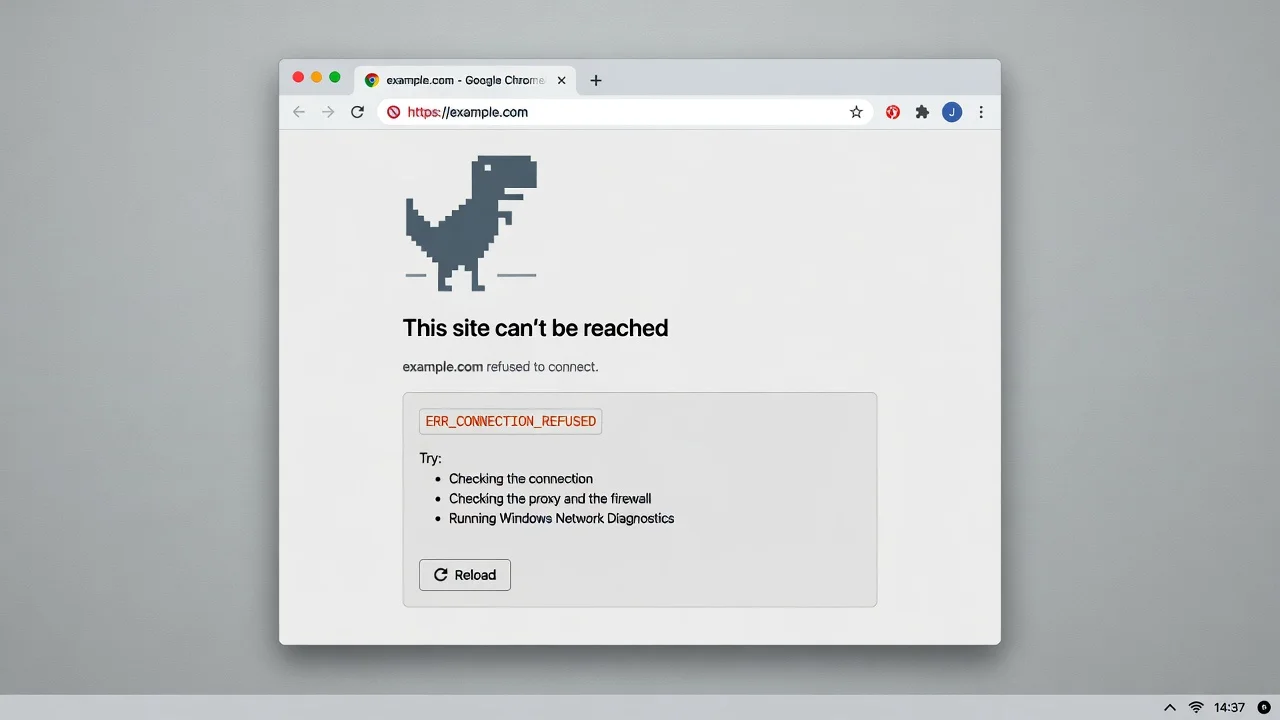
I know what it feels like to be facing a blank screen on Chrome. You were doing something important, you clicked a link and instead of the page you need you received a network connection error message “this site can’t be reached.
But in most cases, how to fix this site can’t be reached becomes simple once you identify which of the 6 common causes is triggering the error.
Let’s do this step by step as I will explain the diagnostic first approach. Rather than mention generic fixes, I’ll help you figure out what type of problem you are having, and then provide you with the exact steps you need to take to solve it in your case. I explain the cause of the problem in Windows, Android and Chrome (and provide a number of fixes that go beyond the scope of most troubleshooting articles).
Here’s how to determine what is going around and resolve it.
This site can’t be reached” in Chrome is actually caused by a number of reasons
The “this site can’t be reached” error in Google Chrome is an error message that appears when a web browser is unable to connect to the website which can have a dozen different causes and it’s the one thing that makes the difference between a quick 30-second fix and an hour of wasted troubleshooting.
A broken DNS server, corrupted browser cache, too aggressive antivirus solution, misconfigured VPN, broken router, or even an internal setting for the Chrome browser that most don’t even check are examples of things I’ve seen cause this error. Once you know what you are dealing with, it will change your approach to fixing it.
There is one thing that anyone should know at the outset; Wi-Fi does not equate to internet access. Your device may display full bars of signal, but your ISP has no connection to the router. In both cases, Chrome displays the same error, but there are two different fixes.
One of the most prevalent causes is DNS Domain Name System. A domain name such as “google.com” is mapped to an IP address by your DNS server that your browser requires to locate the site. If that fails, Chrome will fail and display this error.
The 6 Most Common Causes – and how to determine which one you Have!
If you are thinking about doing something, find out what type of problem it is. These are the 6 reasons for most “this site can’t be reached” errors:
Your browser cannot find the address of the website. Look for the DNS_PROBE_FINISHED_NXDOMAIN error code just below the main message.
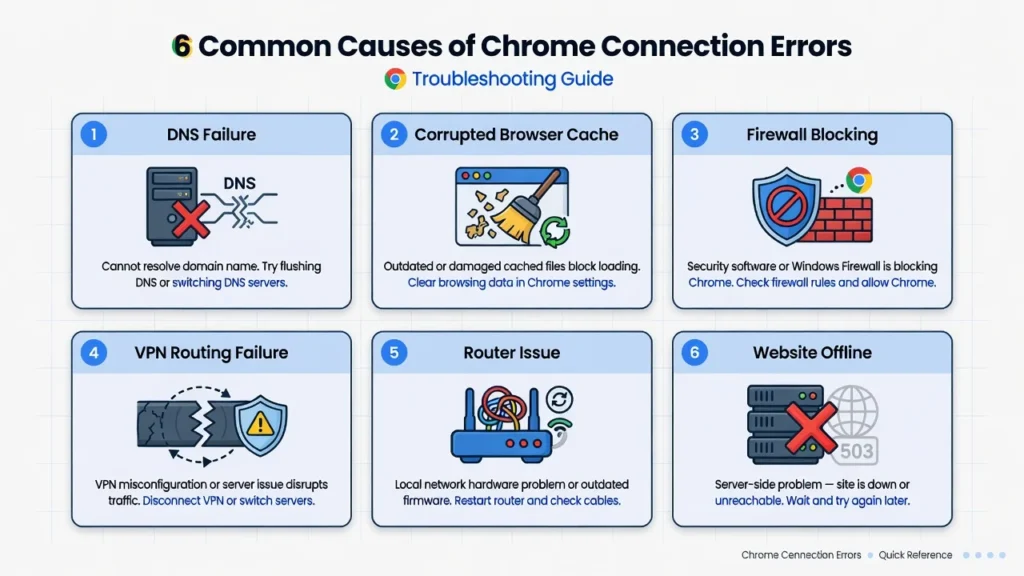
Corruption or corruption of the cache or cookies : Web information which is stored is incorrect or corrupted, and in some cases website owners may also need to How to Clear WordPress Cache when outdated cached files prevent pages from loading correctly. This is usually on one or two particular locations.
Firewall or antivirus blocking Chrome : Your security software is blocking Chrome. Pop-ups that occur out of nowhere, following a security software update.
Proxy or VPN routing failure : The routing of a VPN or proxy is incorrect. In such cases, ERR_CONNECTION_RESET is a common error that appears in Chrome.
Unstable network or router issue : In spite of seeing full bars on the home network icon, there is no upstream connection.
The web site is off-line : The server is having trouble, and website owners may need to investigate issues like an HTTP 500 WordPress error. Nothing local will help till the site recovers.
Complete the three “quick tests” in the following section and discover your exact cause within 60 seconds.
Avoid touching any settings: Identify the problem in 60 seconds
The No. 1 error people commit when repairing this error is jumping to solutions without understanding what they are attempting to fix. I have personally seen people running Windows command-line scripts for 45 minutes because the problem was that the web site was down for maintenance.
Start with the following three tests. They can be done in less than 20 seconds each.
Test 1: Are other sites able to be loaded?
If you have Google Chrome, open another tab and attempt to navigate to google.com or youTube.com. If they load fine but your original site doesn’t, it’s a site specific issue. Go to the bottom of the page to the “Only One Website Won’t Load” section.
Test #2: Will the site load on the phone when using mobile data?
Note: Ensure Wi-Fi is switched off on your phone and mobile data is used. If it loads on your smart phone then it is a issue with your home network/router. For a check that the site is down for everyone, visit downdetector.com and type in that site; if the site is reported as down by the majority of people, then the site is down and nothing local will help. There is only one cure for waiting, and that is to wait.
Test #3: Does it load in Firefox or other browser?
If it’s not opening in Chrome, the problem is in Chrome. Go straight to the Chrome Settings section, and bypass the network fixes altogether. You will save time from using repairs that do not apply to you with these three tests, which only take under 60 seconds to complete.
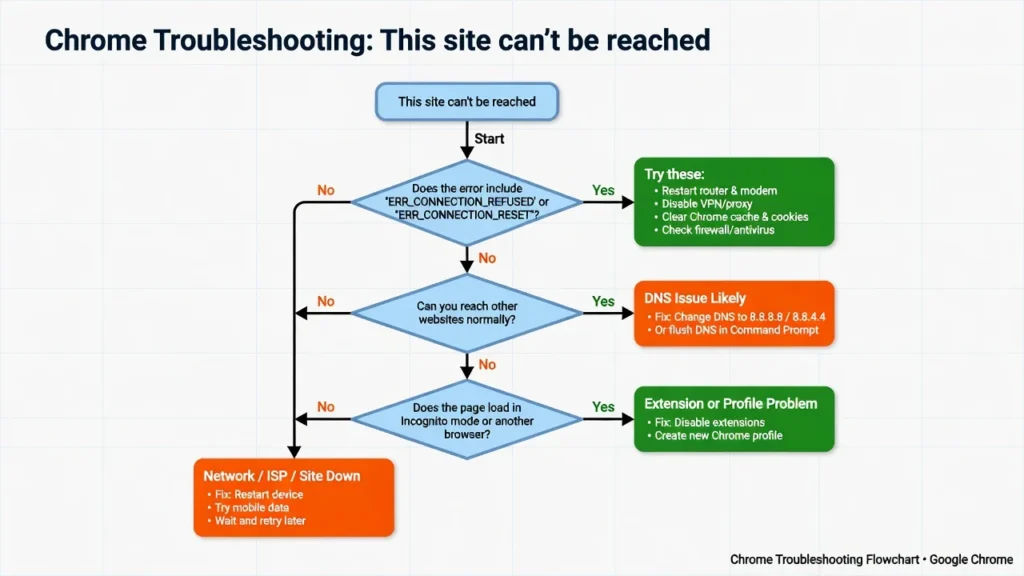
Here are a few questions you can ask yourself to learn what your error code is telling you
Chrome may display a particular error code under the “webpage not available” or “this site can’t be reached” message and every code is a sign of a different cause.
ERR_CONNECTION_RESET is a connection that was initiated and then reset. This is likely because a firewall is blocking the connection mid-handshake, because there is an unstable connection, or QUIC is not working on Chrome. This is usually fixed by the winsock reset commands in the Advanced Windows section.
DNS_PROBE_FINISHED_NXDOMAIN indicates that Chrome was unable to locate the website’s address in any way. The domain may not exist, your DNS server may have failed or there may be a typing error in the URL. This is thoroughly covered in the DNS section of this guide.
ERR_QUIC_PROTOCOL_ERROR is a Chrome-specific error that has to do with encrypted connections and how they are handled by Chrome. Sometimes, disabling QUIC protocol can even cause ERR_QUIC_PROTOCOL_ERROR to be replaced with ERR_CONNECTION_RESET, and you will need to use the winsock reset fix as a post step. As mentioned above, the Chrome Flags fix is the most stable fix for this particular code.
The fastest Physical Diagnostic is the Hotspot Test
There is one physical test that will give you more clarity than any software diagnostic, and it is done before you make any of the changes. Use the phone’s mobile hotspot to connect to your laptop or PC, rather than your home Wi-Fi. Next attempt to load site.
If the site loads on the hotspot, then your home router or ISP connection is causing the issue. The next step is to restart your router and/or contact your ISP.
If it still doesn’t show up on the hotspot, then the issue is on your device or it may be a problem with Chrome alone. The network is good. Instead go with the Chrome and Windows fixes.
Alternatively, on Windows, you can open the Command Prompt and enter ping google.com then press Enter.
If you are seeing 4 lines of “Reply from…” with millisecond times, your internet connection is fine, it’s either Chrome or Windows. If you get the “Request timed out” message 4 times in a row, your router has lost its upstream connection, resolve the issue with the router, do not attempt any changes to Chrome or Windows Settings.
This site cannot be reached (No Tech Skills Needed)
For non-technical users, you’ll need to begin here. These are no command prompt fixes, no advanced settings and most connection errors are fixed in the first 3 steps.
Test site after every patch. Once it loads, you’re finished you don’t have to go through the rest of the list.
How common it is to make a typo in the URL is a fact of life. It is not uncommon to make a mistake in the URL.
If troubleshooting is required, take another look at the address bar. If the site cannot be reached, it can be caused by a single typing error, or by missing an “s” in the “https,” and it can look just like a network problem.
This can also be caused by old bookmarks. If the website has been relocated to a new address, and the bookmark has been set to the previous URL, then Chrome will display the following error message for the previous URL.
Restarting Your Router and Device is Fix #2
Unplug the router from the power supply, wait 30 full seconds and then reconnect the router to the power supply. Restart your computer as well as your router while the router reboots.
This is because routers have temporary memory containing tables of routing information and cached information which may become outdated or corrupted after days or weeks of operation. A full power cycle eradicates all of this and makes the router make a new connection to your ISP.
Allow approximately 60 seconds after the router is fully up and running (when its internet or WAN indicator light is solid).
Fix 3: Use a Different Browser
Open Firefox, or Edge or other installed browser and attempt to navigate to the same site. This one test is worth a lot to read.
If the site is working in Firefox but not in Chrome, the problem is likely with your network and/or computer. The problem is actually from within Chrome. If this is the case, go to the Chrome Settings part of this guide and bypass the network-level fixes.
If the site fails in all browsers, then it’s the result of your network, device settings or the site itself. Continue with the steps below.
Fix 4: Clear Chrome Cache and Cookies (Clear it all)
Open Chrome and click on the 3 dots in the top right corner. Access the Settings, Privacy and Security and Clear browsing data.
Most users overlook this step, but for those who don’t, the Advanced tab is the one to click; not the Basic tab. Change the Time range to All time. If you don’t want to type in your logins again, don’t fill in the boxes in the Passwords section. Click Clear data.
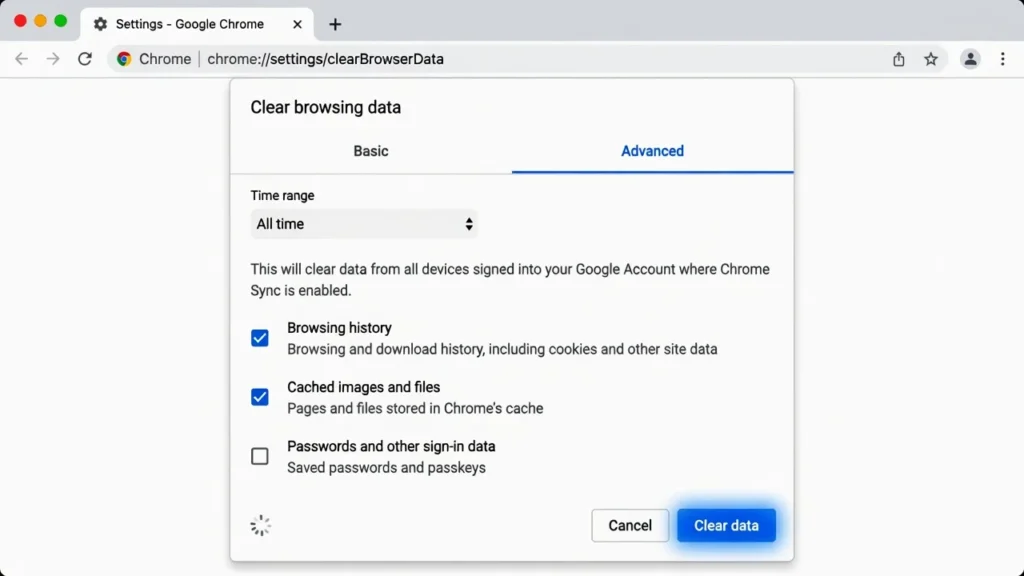
The Basic clear skips destroys corrupted cookies and site data that are usually the reason. The Advanced will remove everything.
In my experience, the Advanced clear fixes cache related connection errors almost twice as often as the Basic clear – the Basic option simply fails to find too many site specific data files.
To disable your VPN or proxy temporarily, follow these steps:
If you’re using a VPN, turn it off and attempt the site again. One of the most frequent reasons for this error is due to failures in the VPN routing process, particularly when the VPN server being connected to is congested or experiencing routing issues.
Additionally, ensure your proxy is not set as part of your Chrome and Windows settings. To open your computer’s proxy settings in Chrome, click Settings, then System, then Open your computer’s proxy settings. Ensure that there is no manual proxy setting.
In Windows, select Settings, and then scroll down to Proxy. Set Proxy server to “Off” and “Automatically detect settings” to “On.
Some freeware installers and bundled software set the proxy settings automatically without asking the user, even if the user did not choose to add a proxy.
Using a temporary firewall and antivirus solution.
This is a diagnostic exercise and NOT a cure-all solution. To check this out, temporarily turn off firewall and your anti virus and load the site.
If the site opens without security software, then your antivirus or firewall may have been stopping the site from opening. Don’t leave it turned off, especially if you manage websites and follow proper WordPress security best practices.
Rather, open your security software, and configure it to allow Chrome as trusted software or to put a website in its exceptions list.
Note: Don’t disable the antivirus or firewall programs after a test! If it’s a problem that’s solved by disabling it, the correct solution is to add Chrome as a trusted application, not to run unprotected.
The most common cause of DNS Issues and how to resolve them
If it didn’t resolve the issue with the quick fixes above, DNS is likely the last remaining cause.
As mentioned above, your DNS server will convert domain names to IP addresses. If the DNS server is down or it is a stale response, Chrome cannot resolve the name and you are presented with the error.
Most users are not aware that ISP DNS servers go down, become congested and store stale information on a frequent basis. Using Google’s or Cloudflare’s public DNS always improves the speed and reliability of DNS response compared to ISP-provided DNS.
How to Flush Your DNS Cache (Windows and Mac)
Flushing your DNS cache clears the stored record of website addresses on your device.
If Chrome saved a bad address for a site and keeps trying to use it, flushing forces it to look up the address fresh — a common issue after moving a WordPress site to a new domain.
On Windows: Click the Start menu and search for Command Prompt. Right-click it and choose “Run as administrator.” Then type the following command and press Enter:
ipconfig /flushdns
You should see a message confirming the DNS Resolver Cache was successfully flushed. Restart Chrome and try the site again.
On Mac (macOS Monterey and later): Open Terminal from Applications and type:
sudo dscacheutil -flushcache; sudo killall -HUP mDNSResponder
Enter your Mac password when prompted. Then restart your browser. If you’re on an older Mac, the command may vary slightly — check Apple’s support page for your specific macOS version.
For advanced users: Open Chrome and type chrome://net-internals/#dns in the address bar. Click “Clear host cache” to flush Chrome’s internal DNS cache separately from your system’s DNS cache. These are two different caches, and flushing one doesn’t always flush the other.
For best results, run the DNS flush as part of the full command sequence in the Advanced Windows section rather than on its own. When the network stack is deeply corrupted, a DNS flush alone often isn’t enough.
Use Google, Cloudflare or OpenDNS (Which One Is Best?)
One of the fastest solutions to this error is to change your DNS server – this can only take a couple of minutes.
Click on the Windows + R keys on the keyboard, type ncpa.cpl, and click the Enter key. This allows access to you network connections. Click on the active connection (Wi-Fi or Ethernet) and then on Properties. Double click Internet Protocol Version 4 (TCP/IPv4). Click on Use the following DNS server addresses and write down your favorite DNS.
All three of these are good, safe, public options:
Google DNS: Preferred 8.8.8.8 — Alternate 8.8.4.4
Cloudflare DNS: Preferred 1.1.1.1 — Alternate 1.0.0.1
OpenDNS: Preferred 208.67.222.222 — Alternate 208.67.220.220
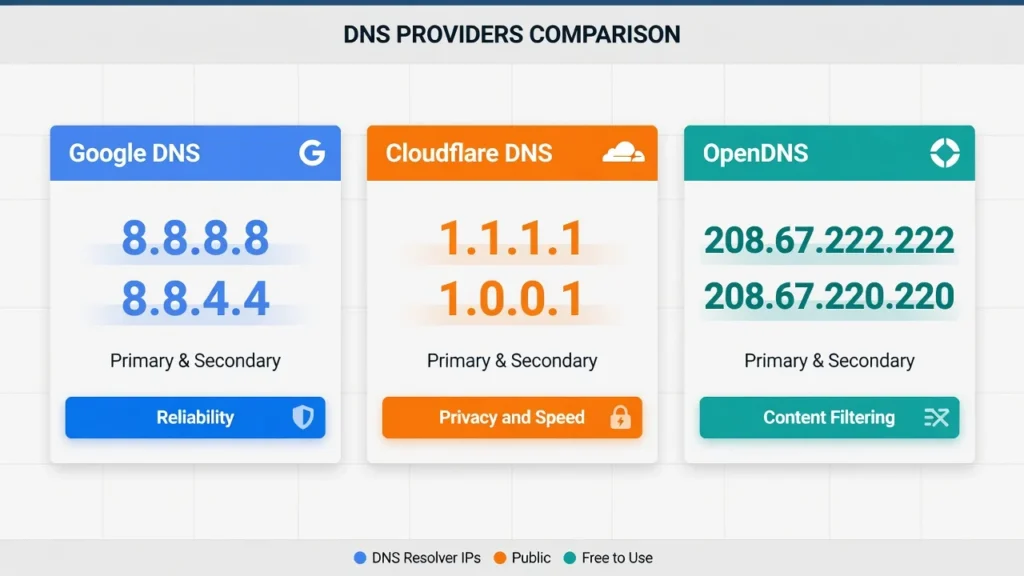
All three are more reliable than a typical ISP DNS server. I personally use Cloudflare as it is generally fast and privacy focused, however Google DNS is equally reliable.
The best piece of advice most guides will overlook: Once the DNS is changed, right-click on the network connection, then click the Disable option. Right-click again and click Enable. This causes Windows to change the new DNS settings sooner than if the connection was naturally reset.
Advanced Windows Fixes:
Commands That Clear Deep Network Problems is a book aimed at clearing up deep network problems
If you have done everything mentioned above and you still see the error, it’s probably deeper in the Windows network stack. These fixes are for Windows 10 and Windows 11 users and will need Command Prompt as an administrator.
These commands may seem a bit technical, but they’re easy to execute simply copy each command into the Command Prompt, hit Enter and proceed to the next. I have written below what each of them does so you know what’s going on.
This sequence of commands has worked on Windows 10 and Windows 11 systems on which the error appeared after all other fixes and has resolved the error in most of these scenarios.
Instructions for the Full Command Sequence (Run These in Order):
Click Start, type in “Command Prompt” and press Enter, right click on the Command Prompt, and select “Run as administrator”. Next, enter each of these commands individually, pressing Enter after each command:
netsh winsock reset
netshintipreset ResetLog.txt
ipconfig /release
ipconfig /renew
ipconfig /flushdns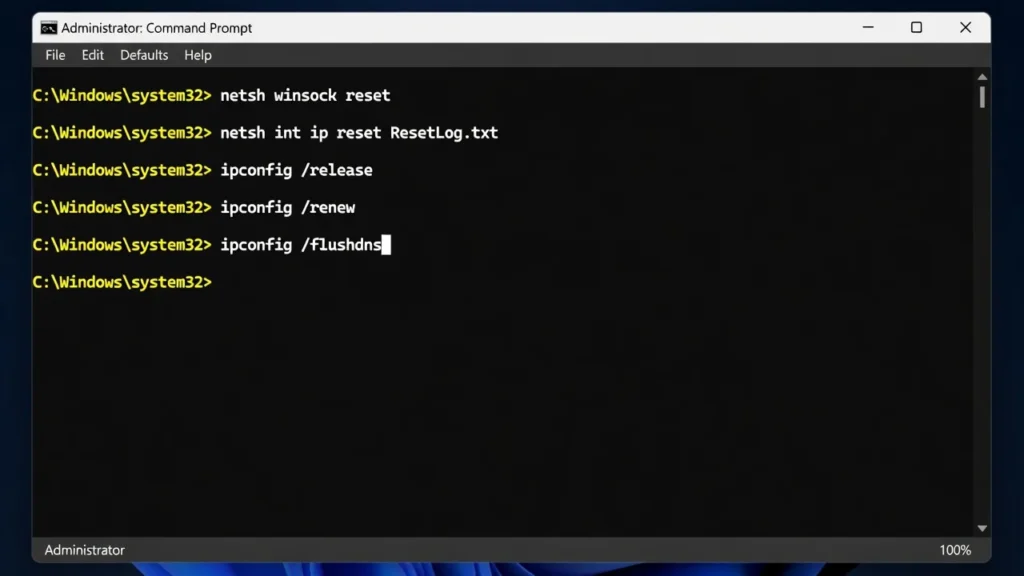
Restart computer before testing after running all five commands. Some of these changes won’t be effective until the full restart of Windows not restarting will mean that changes did not happen.
Why this sequence is better than flushing DNS. The winsock reset is intended to remove the Windows Sockets catalog, which maintains the internet connections for all applications, such as Chrome. IP reset eradicates wrong TCP/IP settings. The release and renew commands will tell your computer to ask your router for a new IP address. Any stale cached addresses will be flushed at the end by the DNS flush. All five run simultaneously resets your network stack, one layer at a time.
Turn off the IPv6 feature for Your Network Adapter
Most of the Internet service providers are not supporting IPv6 completely, and when Windows attempts to use it, it does not work, but it looks like it does. This is normally eliminated by disabling IPv6 on your network adapter without any noticeable effect on normal use at home, including web surfing and apps.
Click on the Open Control Panel link and then select Network and Sharing Center. On the left, click “Change adapter settings”. Right click on the active connection and select Properties. Scroll down the list and select “Internet Protocol Version 6 (TCP/IPv6)” and uncheck the box. Click OK.
At the same time, click on Internet Protocol Version 4 (TCP/IPv4) and open its Properties. Check to ensure that both “Obtain an IP address automatically” and “Obtain DNS server address automatically” are checked off. Another more common error that most people would never guess, is if a manually assigned IP address does not match your network.
Clear Your SSL State (Worth Trying Before a Full Reset)
The SSL certficate information for your browser and Windows is stored in a local cache. If Chrome has an expired or corrupt certificate record stored in that cache for a website you are attempting to visit, then Chrome will not connect to that site at all, and it will display the “site can’t be reached” message.
Type in “Internet Properties” into the Windows search bar. Open it, and click “Clear SSL State”. Click on OK and then use Chrome again.
One of the known reasons of connection issues in the Chrome browser after it crashes or fails is due to SSL state corruption, especially when system clock changes, anti-virus software updates or certificate renewals in a site that you recently visited. If you’ve recently done one of those things and the error came up shortly after, this may be a good fix to try before proceeding.
Websites are being blocked because of chrome settings
There are multiple internal settings inside Chrome which can directly trigger the error “this site can’t be reached” without affecting your network, DNS or Windows settings.
These are the areas that most troubleshooting articles will not look at.
If it works in Firefox and not Chrome, begin with this.
Does the Site Load in Private Mode? (The Incognito Test)
Open a Chrome incognito window: Press Ctrl + Shift + N. Attempt to load the site with incognito window.Use incognito window to load the site.
If the site opens in incognito window but not in your normal Chrome window, it is likely that your browser extension or some Chrome setting in your normal window is the cause. Incognito mode will prevent most extensions from loading and also open a new session, eliminating the problem right away.
If the issue remains if you clear your session data and extensions in incognito, then it’s deeper than that.
Close Chrome Extensions (All of them, temporarily)
Enter chrome://extensions in your browser and press enter. Turn on and off all of the programs that you see. Next, refresh the site in a normal Chrome browser.
If the site is loading fine, turn off one extension at a time and test until you have them all off. If the error reappears, then you’ve identified the cause.
Extensions can be malicious or poorly coded that can silently block a connection to any website, or all websites, based on the permissions granted by the extension. This happens more often than you might think, particularly with ad blockers, VPN extensions and privacy tools.
There are three Chrome settings that people seldom check
People rarely check these three settings in Chrome
Any one of these three Chrome settings could be a direct cause of the “this site can’t be reached” error and are seldom checked when troubleshooting.
Setting 2: Disabled “Always use secure connections”.
Click on Chrome Settings, Privacy and Security, then Security.Click on Chrome Settings, Privacy and Security, then Security. Go to the bottom and click the toggle that says “Always use secure connections. If this is turned on, Chrome will refuse to load any website that doesn’t have an up-to-date SSL certificate. Older sites or sites undergoing certificate renewal will appear unreachable, but they are functioning well.
Please disable this toggle and visit the site again.
Setting 2: Switch Preload pages to “No preloading”
Click on Chrome Settings, Privacy and security, and then Cookies and other site data. Change “Preload pages” to “No preloading.
Chrome’s preloading feature loads web pages in the background before you visit them. If a page does not load, because it was interrupted by a slow network connection or the wrong address (DNS), Chrome can then keep this failure state for the duration of the current session and throw an error on a page that would otherwise be loaded. Preloading can be prevented from doing this by turning it off.
Setting 3: Change Chrome’s secure DNS to a reliable DNS provider
In Chrome, go to Chrome settings, Privacy and security, Security. Scroll down to the “Use secure DNS” section. Change default service provider to Google or OpenDNS. This sets the DNS used internally by Chrome, and can override ISP-level DNS filters not always conveyed through the system-level DNS change.
The Chrome Flags Fix (Last Resort Before a Full Reset)
Enter chrome://flags into your browser address bar. In the search box at the top, type “TLS 1.3 Hybridized Kyber Support.” Select Disabled and press Relaunch button.
You can confirm the version of Google Chrome you are using by going to the three-dot menu, Help, then About Google Chrome. This fix is most frequently reported in Chrome 116-120, where the TLS 1.3 Kyber draft had an unexpected interaction with some server TLS configurations.
This patch is not an official one, but rather from a documented case in the Chrome Help Community forum. There, a user said that this flag was triggering ERR_QUIC_PROTOCOL_ERROR on some websites in Chrome 116 and above, as the Kyber support was interfering with the websites’ server settings. When it is disabled, the connection error was fixed.
This is not a standard fix, but if all else fails and you still have a problem, you may want to try this one before proceeding further.
Clear Chrome’s browsing history and extensions
If none of the above has worked, there is a very effective solution to reset Chrome to factory default settings, which will keep your bookmarks intact.
Click on the “Reset settings” button in Chrome Settings, at the bottom of the page. Then click on “Restore settings to their original defaults. Confirm the reset.
This resets your startup pages, tab settings, pinned tabs, extensions, and all chrome-specific settings. You don’t lose any bookmarks or saved passwords. After reset, navigate to a good webpage, such as YouTube first to check that Chrome is functioning properly, and then go to your original webpage.
When you are on Android but encounter
“This Site Can’t Be Reached” error, you should try these methods to resolve it.
Fixing this error is done in an entirely different way if you’re on Android versus desktop. The mobile Chrome app has its own data storage, its own DNS settings and Android has OS-level network permissions that can block Chrome’s access to the internet without any knowledge of the user.
Follow these steps for Android devices the fixes will be different from desktop and jumping ahead will likely make it take even longer.
Clear Chrome Data
Right Way provides an easy-to-use solution for clearing data from Chrome on Android
Android users typically just clear the data that is stored on the Chrome app, but not a layer of system-level cached data. Open Chrome, click the three dots, select Settings, Privacy and security and then clear browsing data. Select Advanced, All time, check everything and tap Clear data. Next, take one more step: navigate to your Android Settings, select Apps, Chrome, and Storage. You will find two different options: Clear Cache and Clear Data (or Clear Storage). Tap both. This removes WebView data from the system and also Android services data which cannot be removed from Chrome’s settings menu.
Make sure to check the App-Level Data permissions on Android for Chrome
It’s an one of the most neglected reasons for the “site can’t be reached” error in Android. Restriction of network access can be done at the operating system level without any warning shown in Chrome.
To check the info of a Chromium OS app, long-press the app icon on the home screen and select App Info. Check for “Data usage” or “Mobile data and Wi-Fi.
Within that menu, make sure that both of the items are set to Off: “Disable mobile data” and ” Disable Wi-Fi”. If either of these is enabled, your OS is preventing Chrome from using your internet connection. The block can’t be fixed by changing DNS or clearing the DNS cache since it’s not even getting to Chrome to make a connection.
Change DNS setting in Chrome on Mobile and Toggle Airplane Mode
Launch Chrome on your Android and click the three dots and then select Settings. Go to Privacy and Security and select “Use secure DNS. Turn it on, click on “Choose another provider” and choose Google or OpenDNS from the list.
Save these settings, then turn on the Airplane Mode for approximately 5 seconds, and then turn it off again. This makes your phone re-register on your network and re-establish a new connection. It’s the Android version of the Windows IP address change function, and it can help clear up connection issues that aren’t fixed by the data clean-up option.
When the WiFi is connected but the sites won’t load, you can determine the cause and take steps to sort it out.
What is a difference between “Connected to Wi-Fi” and “Connected to the internet” and Chrome is unable to distinguish this just by looking at that error message. Your device can be nicely connected with your router, while your router is totally disconnected from your ISP.
A stable connection can be the result of a router connection issue, that is, your device may be able to connect to the router, but the router is out of signal from your ISP.
Then, in the diagnostic section, open the Command Prompt and enter ping google.com. Assuming all four requests time out, your router has lost its upstream connection, you should restart your router before trying anything else.
The other quick diagnosis is to connect to your cell phone’s mobile hotspot. If it is confirmed by the hotspot test that the sites load on the mobile data but not on your home Wi-Fi, it means that the issue is due to the router or ISP; it is not due to your device or Chrome. Try to turn your router back on and if it fails, call your ISP.
One more situation that is a surprise, is that the router could be setting a wrong DNS server setting to your device. If you have configured your DNS settings manually in your network adapter configuration settings, then in certain situations, some routers override that setting. If this is the case, you can change the DNS setting directly in Chrome (under the secure DNS setting) and it will ignore the assignment from the router.
If just one website won’t load, try switching to a different browser
That’s a Different Problem When all sites work except for one particular site, you won’t have the same problem as when you get “this site can’t be reached. When all websites are working except one particular website, you will not have the same problem as when you get “this site can’t be reached”. The repair road is different as well.
As I researched this guide, this same situation arose many times in the Chrome Help Community and in the Reddit forum r/techsupport. Users would attempt all the typical remedies: flushing the DNS, calling winsockreset, clearing the web cache, and so on, but without success — the one site wouldn’t load while the rest of the Web would. If only one website is not loading, the top reasons are one of these 4:
This website is experiencing server issues. See the website, downdetector.com for that particular site.
You have an ISP blocking or filtering that domain. Certain internet service providers are regionally restricted in certain countries, preventing the public from accessing some or all of these types of content or specific sites. This is ruled out instantly upon testing mobile data.
An anti-spam firewall is blocking access to that domain. Certain websites are detected and inaccessible to some antivirus programs without alerting the user.
Your IP address is being blocked by the website. This occurs more frequently than users may think.
Is the Site Blocking Your IP Address?
Single IP addresses or IP ranges can be blocked at websites. This occurs when a server detects an excessive amount of requests from a single IP address, suspicious activity or sometimes when you share an IP range with someone who caused a block.
The best way to see if this is the case is to join a VPN, switch to another server location, and test the site once again. If cannot load with VPN, it was an issue with your IP address. You can try contacting the website’s support team to request an unblock, or simply use a different network connection where you’ll have a different IP.
Filtering a domain using ISP or firewall filtering
If it is able to load on mobile data, but not on your home Wi-Fi network, your ISP most likely filters that domain. There are some filters that apply at the domain level, either based on content categories or specific block lists, which are used by enterprise networks, school networks, and some home ISPs.
A VPN sends your data over to another server at another location, so it avoids all filters imposed by your ISP. If it loads with VPN on, then the cause is confirmed to be ISP filtering and the solution is to use a VPN.
It seems that you’re having trouble with Site Loads in Firefox, but not in Chrome
You seem to be experiencing issues with Firefox but not Chrome. This particular case is worth a paragraph to itself since the solution is quite distinct from all other versions of this problem.
No, Chrome itself doesn’t have a network stack like Firefox does. Chrome has a built-in DNS configuration, built-in protocols like QUIC, built-in certificates, and built-in security filters. If Chrome crashes and Firefox doesn’t, there’s a Chrome issue, not a network or Windows issue.
Unfortunately, those are fixes for windows, and will not help in this case as it operates at a lower level than Chrome. Chrome is skipping that layer in particular when Firefox is not, and that’s a problem.
This starts with the Chrome Settings section of this guide. Run incognito test, disable all extensions, use the three hidden settings in Chrome (HTTPS-only mode, preload pages, secure DNS), and if it does not fix the issue, consider the Chrome Flags fix.
Here’s one example of such a case that has been documented in the Chrome Help Community forum. The user has tried multiple standard fixes, such as winsock reset, DNS flush, reinstall chrome, and turning off antivirus. The site continued to work in Firefox and with a VPN in Chrome, but failed in regular Chrome without a VPN.
In that case, the fix was making it so “TLS 1.3 Hybridized Kyber Support” wasn’t enabled in the flags menu in Chrome. An internal protocol setting for Chrome that conflicts with some web servers and causes connection issues in specific versions of Chrome on Windows 10.
If you are in this particular scenario, proceed straight to the Chrome Flags fix, in this case the deactivation of “TLS 1.3 Hybridized Kyber Support. It’s the most common remedy for the “works in Firefox, doesn’t work in Chrome” situation.
Still Not Fixed?
A Full Network Reset and ISP Escalation Steps are provided. A Full Network Reset and ISP Escalation Steps is provided.
After you’ve used every trick you’ve learned to follow the instructions above, and still can’t figure it out, I hear you. Certain versions of Chrome and Windows builds, coupled with some ISPs, have failed to connect, and require multiple layers of fixes to resolve. The steps below are what I’d try next.
First, I should warn you that most of the time it’s done in a matter of seconds, but some configurations, especially those that involve ISP routing or bugs in certain versions of Chrome, will take a little longer. Below are the fixes you’ll be able to do before contacting your ISP.
Full Network Reset (Windows 10 and 11):
A full network reset will re-install all network adapters on your machine and reset all network settings back to default. This is the most complete Windows level repair that won’t require reinstalling the Windows operating system.
Navigate to Windows Settings, Advanced network settings, and scroll down to Network and Internet. Select “Network reset” and “Reset now”. Read the warning before pressing yes, your computer will restart automatically and you might have to re enter your wi-fi password after the restart.
This patch addresses several persistent connectivity issues that result from corrupted network adapter drivers, remnants of improperly configured network settings from legacy software, and stubborn proxy and VPN settings that could not be completely removed using other methods.
To confirm it is your ISP and what to do
Check if it’s indeed an ISP issue before contacting your service provider. Test website on various devices with mobile only, not at home. Try accessing from a friend’s home or library network too.
If the site is not loading on your home connection, it’s likely a problem with your router or your ISP.
If you call your ISP, say: “I cannot connect to some sites with my home network, they work well when I’m on mobile data or other networks, and I have already tried to restart my router several times. This is a context that tells them that it’s a routing or filtering problem on their side, and helps you get to the right support team in a timely manner.
If you confirm that your ISP is not blocking the site, but you still cannot access it, a good VPN will be a useful solution. If there is a routing issue between your connection and the site’s server, and if a VPN is activated, your traffic will flow through a different server and be routed around the routing issue.
If you use a Chromebook, note that the Windows CMD commands in this guide don’t apply. With the Chromebook, concentrate on the Chrome changes to fixes and the DNS change in the browser. If you’re familiar with Linux on Chromebook, the Terminal app provides you with similar network capabilities. Use Guest mode browser session to eliminate profile-specific problems, if required.
Four habits that help Stop It From Happening Again.
It will make a big difference in the frequency of this error if four changes are made.
Use a permanent public DNS. The single point of failure in this problem is most likely your ISP’s DNS server. By switching to Cloudflare DNS (1.1.1.1) or Google DNS (8.8.8.8), you get a server that’s even faster and more stable, powered by teams that are solely focused on DNS reliability. With this change, a large amount of “site can’t be reached” errors that would happen due to DNS related issues are prevented right in the beginning.
2. Keep Chrome updated. The conflicts mentioned in this guide at protocol level, such as QUIC errors or TLS conflicts, are fixed in chrome updates. Running Chrome that is out of date means you’re running with bugs that have been patched in newer versions of Chrome. The update is automatic, but you can check for updates manually by clicking on the three-dot menu, then Help and then “About Google Chrome.
3. Avoid unnecessary browser extensions. Always install extensions from trusted developers, and periodically check extensions in chrome://extensions. Don’t keep anything that isn’t used anymore – it means you don’t have anything that can cause this error in the future.
4. Clear Cache and Cookie Monthly. Over time corrupted site data accumulates. The Advanced settings and the All time range option will ensure that your browsing history remains good and that no connection issues will arise due to cache-related reasons.
Frequently Asked Questions
Why is some sites showing the “this site can’t be reached” error and some is not?
If only a few sites are not working and the rest are working, it is likely to be a site-specific problem. If only one website is not loading, the most likely causes are that it has been blocked at the IP address level, the DNS propagation changes have occurred recently or the ISP has filtered that domain. Try loading the affected site with a VPN or on mobile data. If so, it is either because your ISP is blocking the site or it is at your ISP level.
Why does the error appear sometimes but then go away on its own?
Intermittent errors typically indicate issues with DNS propagation times, intermittent connection issues with the ISP that should resolve on a retry, or the failure and subsequent success of QUIC protocol on a subsequent attempt. When this error is occurring over and over again without any apparent pattern, the sequence of running winsock reset, IP reset, DNS flush and restart often restabilizes the connection.
What’s the difference between flushing DNS and changing DNS servers?
By flushing DNS, you remove the record of website addresses from your device. Each address will be resolved on the next visit to your device. Switching DNS servers changes whose company they use to perform the DNS lookups. Flushing corrects the records if they have been corrupted. For those facing slow or broken DNS servers from their ISP, replacing it with Google or Cloudflare’s one does the trick. These are different problems and sometimes both steps are needed.
If you see “This site can’t be reached,” does this indicate that the website itself is down?
Not necessarily. This error occurs because Chrome was unable to connect; it may be the result of a problem on your device, network, or on the server of the website. Look at downdetector.com – it should tell you where the problem is – and have a look at downdetector.com on your phone with mobile data only. If the site does not load on mobile data, then it’s your home network. If it doesn’t work on mobile data either, then it’s probably down for at least a few days until it comes back up, after which you should be able to do something on your end.
So what is so special about the site that it requires the VPN?
If a site loads without a VPN but doesn’t load with one, there’s a very good chance that there’s a block upstream of you, either at your ISP or on their end. It could be a misconfiguration problem with your ISP, a block by your ISP, or possibly a blocking by the website itself on the IP range allotted to your ISP. This isn’t a device level problem and will require no device level fix. For known ISP violations, the practical answers are a VPN or by using a different data connection.
If I clear my Chrome data will my login information and bookmarks be gone?
Unlike other browser extensions, bookmarks don’t get deleted when you clear browsing history. If you do not check the ” Passwords and other sign-in data” box in the advanced clear menu, then the password will not be removed. If you don’t check that box, your passwords are secure. When you clear the cache, cookies, and site data, it doesn’t also delete passwords or bookmarks unless you choose to clear those types of data.
What do I do when this appears on my Chromebook?
First, check the network settings and try the site using a Guest browser window to eliminate profile-specific problems. In the settings menu, clear Chrome’s cache. In Wi-Fi network settings change the DNS server to Google DNS (8.8.8.8). Chromebook does not have access to Windows Command Prompt, so the winsock reset and IP reset commands don’t apply. It’s most important to pay attention to the Chrome settings fixes and the DNS change — these are the most useful features for most ChromeOS users. If you’re happy with Linux on the Chromebook, the Terminal app provides you with similar network commands.
Specifically, what does ERR_CONNECTION_RESET mean?
ERR_CONNECTION_RESET is a Google Chrome error which indicates that the browser has made a connection with the server but the connection was reset before any data was transferred. This is not the same as not connecting, it’s a different kind of failure to connect. The most typical reasons are a firewall or anti-virus software that blocks the connection while it’s in the middle of the handshake, an unstable network path between your ISP and the web site’s web server, or perhaps a QUIC protocol failure while establishing the connection. The most directed fixes for this specific error code are the winsock reset command and the Chrome Flags fix for TLS 1.3 Hybridized Kyber Support.