I know how it feels to open your WordPress site and find a blank white page staring back at you. “HTTP Error 500” or “The server encountered an internal error.” Your heart sinks. You start running through everything you changed recently, wondering what you broke and how bad it actually is.
Here is the thing though. This error is fixable in almost every case, and most of the time you can sort it out yourself without calling a developer or filing a support ticket.
I will walk you through every cause and every fix, one by one, so you can get back online as fast as possible.
This guide works for everyone. Complete beginners. Experienced developers. Anyone in between. You do not need to know how to code to follow these steps.
What Is HTTP Error 500 in WordPress?
The 500 Internal Server Error is a standard HTTP error. It means something unexpected happened on the server and it could not finish processing the request. That is it. You can also check the WordPress error documentation for how WordPress handles these situations internally.
Is This a WordPress Problem or a Server Problem?
This is always my first question. Technically it can be either one. But in the overwhelming majority of WordPress cases, the server hardware is humming along fine. The real problem is sitting inside your WordPress configuration, a plugin, your theme, or a file that got corrupted or misconfigured somewhere along the way.
WordPress is crashing before the page can even load. The server itself is not dying.
And that changes everything about how you approach the fix. Because if the server is not the problem, you are not looking at a hosting migration or a server rebuild. The fix is in your hands.
7 Most Common Causes of HTTP Error 500 in WordPress
Knowing what you are actually dealing with makes troubleshooting dramatically faster. Here are the seven causes I see come up again and again.
1. Corrupted or Broken .htaccess File
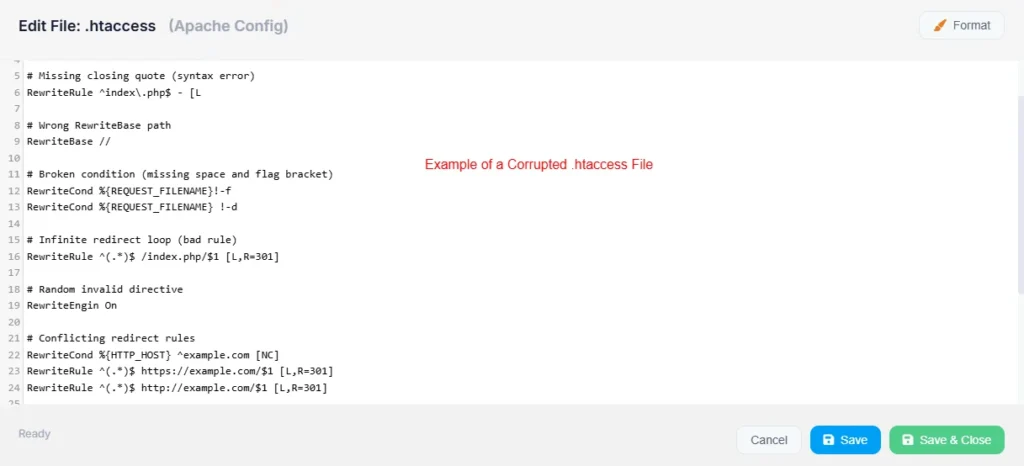
The .htaccess file tells your server how to handle every incoming request for your WordPress site. Small file. Enormous responsibility. If something writes invalid code into it, or if it gets corrupted, your server cannot read its own instructions and throws a 500 error instead.
And it happens more than you would expect. A plugin update, a permalink change, a WordPress update that did not finish cleanly. Any of these can quietly damage this file without giving you any obvious warning.
2. Plugin Conflict After Installation or Update
Plugins. Every time. In my experience, plugins are the single most common cause of the HTTP 500 error in WordPress.
A plugin with a PHP error, a plugin that clashes with another one running alongside it, a plugin that has not been updated to work with your current WordPress version. Any of these can crash the entire site instantly.
The timing is usually the giveaway. If your site was fine and then broke right after you installed something new or ran an update, a plugin is almost certainly what you are dealing with. That is the first place I go.
3. Low PHP Memory Limit
I run into this constantly on budget shared hosting plans. A site running WooCommerce, a page builder like Elementor, and a handful of other plugins can hit a 64MB memory ceiling mid-page-load and just crash.
Some shared hosts set their default PHP memory limit at 32MB or 64MB. Most modern WordPress setups need at least 256MB to run without issues. Hit that ceiling and you get a 500 error. It does not matter how well-coded everything else is.
4. Incompatible or Faulty WordPress Theme
Your active theme runs code on every single page of your site. Every single one. If that theme has a PHP error, a bug, or is not compatible with your current WordPress or PHP version, the whole site goes down and produces a 500 error.
This usually surfaces right after switching to a new theme or updating an existing one. I always test themes on a staging copy before touching a live site. Found out the hard way why that matters.
5. PHP Version Incompatibility
WordPress needs a compatible PHP version underneath it. If your host is running an outdated PHP version, or if they recently pushed an automatic server update to a newer PHP version that your plugins or theme are not ready for, a 500 error can appear with no other warning.
Older plugins are especially vulnerable here. Something written for PHP 7.4 may fall apart on PHP 8.0 or higher. The plugin code expects functions that no longer exist or behave differently, and the whole thing breaks.
6. Corrupted WordPress Core Files
WordPress core files do not cause problems often. But when they do, the result is almost always a 500 error. I have seen this happen twice in the past year specifically after a hosting provider’s auto-update script timed out partway through the process, leaving the core files in a half-updated broken state.
The fix is straightforward. Re-uploading clean core files from a fresh WordPress download sorts it out without touching your content or settings.
7. Incorrect File or Folder Permissions
Every file and folder on your hosting account has permission settings. These settings control who can read it, write to it, or execute it. Get those settings wrong and your server may simply refuse to run WordPress files at all.
The correct settings for WordPress are 755 for folders and 644 for files. Too restrictive and the server locks itself out. Too open and you create a security problem. Either way, a 500 error is the likely result.
Before You Start: Quick Checks to Do First
Before going anywhere near technical fixes, run through these checks. They take under two minutes and occasionally solve the problem before you have to do anything else.
Clear Your Browser Cache and Cookies
This sounds too simple. I know. But a cached version of a broken page can keep showing you a 500 error even after the actual problem is already fixed. Open your browser settings, clear the cache and cookies, then reload the page.
Better still, open your site in a private or incognito window first. If it loads fine there, your regular browser was just holding onto a stale broken page. Nothing more to fix.
Check If the Error Is on Every Page or Just One
Open a few different pages. The homepage, a blog post, your contact page. See what happens.
If the 500 error only shows on one specific page, the problem is almost certainly tied to that page’s content, a shortcode on that page, or a plugin running only there. If every page is broken, you are dealing with something global. A bad .htaccess file, a sitewide plugin, or the active theme.
That single check tells you a lot about where to start.
Is Your Entire Site Down or Only wp-admin?
Visit both your frontend and your backend separately. Try yoursite.com and yoursite.com/wp-admin.
If the frontend loads fine but wp-admin throws the 500 error, the problem is specific to the WordPress admin area. A plugin running only in the dashboard, or an admin-specific file issue. If both are down, you are dealing with something that affects the whole installation. Two very different starting points.
How to Fix HTTP Error 500 in WordPress: Step-by-Step
Here is where the actual work happens. I will take you through each fix in order of how likely it is to solve your specific problem. Start at Fix 1 and work down the list. Do not skip ahead. Do not try multiple fixes at once.
Fix 1: Repair or Reset Your .htaccess File
This is always my first move when I see a 500 error. A corrupted .htaccess file is the most common cause, and fixing or replacing it takes less than two minutes. Start here.
How to Reset .htaccess via File Manager
Log into cPanel and open File Manager. Navigate to your root directory, which is usually named public_html. Before you do anything else, make sure hidden files are visible. Look for the option labeled “Show Hidden Files (dotfiles)” and turn it on if it is not already.
Find the file named .htaccess. Right-click it and rename it to .htaccess_old. This disables the file without deleting it, so you still have the original sitting there if you need it. Now reload your site.
If the error disappears, the .htaccess file was your problem. Right there.
How to Reset .htaccess via FTP
If you prefer working in FTP, connect to your server using a client like FileZilla. Navigate to your root WordPress directory. Enable the option to show hidden files. In FileZilla that setting lives under the Server menu. Find .htaccess, download a copy to your computer as a backup, then rename the original on the server to .htaccess_old.
Check your site. If it loads, you have your answer.
Default WordPress .htaccess Code to Copy
After disabling the old file, you need a new clean one. The easiest way is to log into your WordPress dashboard, go to Settings then Permalinks, and click Save Changes without touching anything. WordPress generates a fresh .htaccess file automatically.
If you cannot get into the dashboard, create a new blank file named .htaccess in your root directory and paste this default WordPress code into it:
# BEGIN WordPress
<IfModule mod_rewrite.c>
RewriteEngine On
RewriteBase /
RewriteRule ^index\.php$ - [L]
RewriteCond %{REQUEST_FILENAME} !-f
RewriteCond %{REQUEST_FILENAME} !-d
RewriteRule . /index.php [L]
</IfModule>
# END WordPress
Save the file and reload your site.
Fix 2: Deactivate All WordPress Plugins
If resetting .htaccess did not fix it, plugins are my next stop. The fastest way to test this is to kill every plugin at once and see if the error goes away.
Deactivate Plugins from the Dashboard
If you can still access your WordPress dashboard, go to Plugins then Installed Plugins. Check the box at the top to select everything, choose Deactivate from the bulk actions dropdown, and hit Apply. All plugins go dark instantly. Reload your site.
Gone? Plugins were the cause.
Deactivate Plugins via File Manager
If the 500 error is blocking your dashboard completely, use cPanel File Manager. Navigate to public_html then the wp-content folder. Find the folder named plugins. Right-click it and rename it to plugins_disabled.
WordPress goes looking for that plugins folder by name. When it cannot find it, every plugin simply stops loading. Reload your site and see what happens. If it comes back, rename the folder back to plugins and go to the next step.
How to Find Which Plugin Is Causing the Error
Once you know plugins are the cause, go into your dashboard and reactivate them one at a time. After each one, reload your site. The moment the 500 error comes back, you just found the guilty plugin. Deactivate it, check whether the developer has pushed a recent update, look through their support forum, or find an alternative that does the same job.
Fix 3: Increase the PHP Memory Limit
If deactivating plugins did not change anything, WordPress might simply be running out of memory mid-load. This fix tells your server to give WordPress more room to work.
Method 1: Edit wp-config.php
Open File Manager in cPanel and navigate to your root WordPress directory. Find wp-config.php and open it for editing. Look for the line that says “That’s all, stop editing!” and add this line directly above it:
define('WP_MEMORY_LIMIT', '256M');Save the file and reload your site.
Method 2: Edit .htaccess
If editing wp-config.php did not do it, add this line to your .htaccess file instead:
php_value memory_limit 256MPut it near the top of the file, above the WordPress block. Save and reload.
What Memory Limit Should WordPress Use?
For most sites, 256MB is plenty. If you are running WooCommerce or a stack of heavy plugins, you might need 512MB. You can check what your site is actually using right now by going to Tools then Site Health in your WordPress dashboard. The information section there shows your current memory limit and how much WordPress is actually consuming.
Fix 4: Switch to a Default WordPress Theme
If your active theme is broken or incompatible, switching to one of the default WordPress themes will tell you immediately.
Switch Theme from the Dashboard
Go to Appearance then Themes. Hover over any default WordPress theme, something with “Twenty” in the name, and click Activate. Reload your site.
If the error clears, your previous theme was the problem. Check whether the theme developer has released an update, or reach out to their support.
Change Theme via phpMyAdmin
If you cannot get into the dashboard, you can force a theme change through phpMyAdmin. Log into cPanel and open phpMyAdmin. Select your WordPress database from the left panel. Open the table named wp_options.
Search for the row where option_name equals template. Edit the option_value field and replace whatever theme slug is there with twentytwentythree. Then find the row where option_name equals stylesheet and change its value to twentytwentythree as well. Save both changes and reload your site.
Fix 5: Change Your PHP Version
If your site started throwing 500 errors after your host quietly updated the server PHP version, this is likely the fix you need.
How to Check Your PHP Version in cPanel
Log into cPanel and look for a section called Software. Inside that you will find either Select PHP Version or MultiPHP Manager, depending on your host. Open it and you will see which PHP version your site is currently running.
Which PHP Version Works Best With WordPress?
PHP 8.1 and PHP 8.2 are both stable and work well with recent WordPress releases. But older plugins and themes often break on PHP 8.0 and above. If your site went down after a PHP version bump, the safest immediate fix is to drop back to PHP 7.4 while you update your plugins and theme to versions that support the newer PHP.
How Lowering PHP Version Can Fix the 500 Error
In your PHP version manager, select PHP 7.4 from the dropdown and save. Reload your site. If the error disappears, at least one plugin or your theme was not ready for the newer PHP version your host switched to. Update everything, then gradually move back up to a more current PHP version once you have confirmed compatibility.
Fix 6: Re-upload Fresh WordPress Core Files
If you have worked through every fix above and nothing has shifted, corrupted core files might be what you are dealing with. Re-uploading fresh WordPress files replaces the core system without touching your content, uploads, plugins, or theme.
Which Files to Replace
Download a fresh copy of WordPress from wordpress.org and unzip it on your computer. Inside you will find two folders named wp-admin and wp-includes, plus several individual PHP files in the root.
You only need to replace wp-admin and wp-includes. Leave wp-content completely alone. That folder is where all your themes, plugins, and uploaded media live.
Step-by-Step: Re-upload Without Losing Data
Connect via FTP or open cPanel File Manager. Navigate to your root WordPress directory. Delete the existing wp-admin and wp-includes folders. Upload the fresh versions from the WordPress package you just downloaded.
That is it. Clean files, no data lost. Reload your site after the upload finishes. Your content, your settings, your customizations. All still there.
Fix 7: Check and Fix File and Folder Permissions
Less common than the others. But real. If your server cannot read or execute WordPress files because the permissions are set wrong, it refuses to process the request and throws a 500 error.
Correct WordPress Permission Settings
Folders should be set to 755. Files should be set to 644. The wp-config.php file specifically should be 640 or 644 for security. These numbers define exactly who can read, write, or execute each item on your server.
How to Fix Permissions in cPanel
Open File Manager in cPanel and navigate to your root WordPress directory. Right-click the public_html folder and choose Change Permissions. Set it to 755. You can then select all files inside and set them to 644 using the recursive permission change option in one pass.
If you want to do this faster, use the Terminal in cPanel and run these two commands:
find /home/yourusername/public_html -type d -exec chmod 755 {} \;
find /home/yourusername/public_html -type f -exec chmod 644 {} \;
Replace yourusername with your actual cPanel username. Every file and folder corrected in one go.
How to Find the Exact Cause Using WordPress Error Logs
Worked through all seven fixes and still stuck? Error logs are where you go next. They show you exactly which file broke and why, right down to the specific line of code that caused the crash.
How to Enable WP_DEBUG in wp-config.php
Open wp-config.php in File Manager or via FTP. Find this line:
define('WP_DEBUG', false);Replace it with:
define('WP_DEBUG', true);
define('WP_DEBUG_LOG', true);
define('WP_DEBUG_DISPLAY', false);
Save the file and reload your site. WordPress will now write all PHP errors to a file called debug.log inside your wp-content folder. Open that file and read what it says. The error message will point you directly at the problem.
Turn WP_DEBUG back to false once you have identified and fixed the issue. Running it permanently on a live site is not a good idea.
How to Read the error_log File in cPanel
Your hosting server keeps its own error log separately. In cPanel, open File Manager and navigate to your root directory. Look for a file called error_log. Open it and scroll to the bottom, where the most recent errors sit.
Each entry shows a timestamp, the error type, the file path, and the line number where the crash happened. Even if the PHP code itself looks like a foreign language, the file path tells you exactly which plugin, theme, or WordPress file triggered the problem.
What Common Error Log Messages Mean
“Call to undefined function” means a plugin or theme is trying to call a PHP function that does not exist in your current PHP version. Compatibility issue. Usually fixable by updating the plugin or rolling back the PHP version.
“Allowed memory size exhausted” confirms the PHP memory limit is too low. Go back to Fix 3.
“No input file specified” or “Unable to open primary script” usually means a file is missing or the path to index.php is wrong. Common after a migration that did not finish cleanly.
“syntax error, unexpected token” means there is a typo or formatting mistake in a PHP file. Usually wp-config.php or functions.php after someone made a manual edit and missed a character.
HTTP Error 500 in WordPress: Specific Situations Explained
Sometimes the 500 error shows up in a very specific context. Knowing the context gets you to the right fix faster.
HTTP Error 500 After WordPress Update
A 500 error that appears immediately after a WordPress core update almost always points to a plugin or theme that is not compatible with the new version. Start by deactivating all plugins using Fix 2. If the error clears, reactivate them one by one until you find the one that broke.
Also check your PHP version. Some major WordPress releases bump their minimum PHP requirement, and if your hosting account has not caught up, that mismatch will produce a 500 error. WordPress publishes their requirements on their official website.
HTTP Error 500 After Installing or Updating a Plugin
The timing here makes this one obvious. Site was fine, you activated or updated a specific plugin, site broke. That plugin is almost certainly the problem.
If you can still reach the dashboard, deactivate it immediately. If you are locked out, use the File Manager method from Fix 2 to rename the plugins folder and get back in. Once the site is up, check the plugin developer’s support forum for known issues, look for a pending update, and do not reactivate it until there is a fix available.
HTTP Error 500 Only on wp-admin (Dashboard)
Frontend loads fine but wp-admin throws a 500 error. This pattern almost always points to a plugin that runs exclusively inside the admin area. Dashboard widgets, admin-only tools, certain security plugins. These can crash the backend without touching the frontend at all.
Rename the plugins folder using File Manager to get back into the dashboard. Once you are in, rename it back to plugins and deactivate them one by one until the admin crash stops.
HTTP Error 500 After Migrating WordPress to New Host
Migrations are messy. Multiple things can go wrong at once. Understanding the complete WordPress migration process helps you avoid some of these issues upfront, but if you are already staring at a 500 error after moving to a new server, the most common causes are incorrect file permissions, a .htaccess file that does not match the new server’s configuration, or a PHP version mismatch between the old host and the new one.
Start by resetting .htaccess using Fix 1. Then check file permissions with Fix 7. Then compare PHP versions between your old and new hosts and align them.
Also check your wp-config.php file. The database name, username, password, and host all need to match the new server’s database credentials exactly. A wrong database connection will also produce a 500 error, and it is easy to miss after a migration.
HTTP Error 500 When Uploading Images or Media
This specific situation almost always comes down to one of two things. Either the PHP memory limit is too low for processing image files, or the upload folder permissions are wrong.
Try Fix 3 first and increase the memory limit. If that does not help, check the permissions on your wp-content/uploads folder. It needs to be set to 755. If someone or something has set it to 644, your server cannot write new files into that folder and will throw an error every time you try to upload anything.
How to Prevent HTTP Error 500 in WordPress
Prevention is straightforward once you have a routine. Here is mine.
Always Test Plugins on a Staging Site First
A staging site is an identical copy of your live site running privately, where nothing you do affects real visitors. Most quality hosting providers include a one-click staging feature.
Before installing a new plugin or running a major update on the live site, do it on staging first. Let it run for a day or two. Check for errors. If everything looks solid, apply the same change to the live site. This one habit alone eliminates most plugin-related 500 errors before they ever reach production.
Keep WordPress, Themes, and Plugins Updated
Outdated software is behind most of the WordPress errors I troubleshoot. My routine is to check for updates every Monday morning, which makes it a habit rather than something I keep pushing back.
I follow a specific update order that keeps things manageable. WordPress core first, then plugins one at a time with a site reload after each one, then the theme last. Never bulk-update everything at once. If something breaks, you need to know which update caused it. Doing them separately means you always know exactly what to blame.
Use a Reliable Managed WordPress Hosting Provider
Your hosting environment affects how often you will see errors like this more than most people realize. Budget shared hosting typically caps PHP memory at 32 to 64MB, runs older PHP versions, and offers generic support that does not really understand WordPress internals.
Managed WordPress hosts like Cloudways, Kinsta, or SiteGround’s GoGeek plan set higher memory limits by default, handle PHP version management intelligently, and have support teams that actually know WordPress. When something goes wrong on a managed host, the fix is usually faster and the support conversation is actually useful.
Set Up Automatic WordPress Backups
Even doing everything right, things can still break. A reliable backup is what saves you when they do. If a 500 error ever gets bad enough that none of the fixes above are working, a backup lets you restore your entire site to the last working version in a few minutes.
Use a trusted backup plugin like UpdraftPlus or BlogVault and set it to run automatic daily backups. Store those backups somewhere remote, Google Drive, Dropbox, anywhere off the server itself. Because if the server has a problem, a backup sitting on that same server does not help you much.
Frequently Asked Questions
What causes HTTP error 500 in WordPress?
The most common causes are a corrupted .htaccess file, a broken or conflicting plugin, a PHP memory limit that is too low, an incompatible theme, a PHP version mismatch, corrupted WordPress core files, or incorrect file permissions.
In my experience, a bad .htaccess file or a problematic plugin accounts for the overwhelming majority of cases I have ever dealt with.
How do I fix HTTP error 500 without FTP?
You can fix most 500 errors without FTP by using the File Manager inside your cPanel hosting account. It gives you full access to your server files directly from a browser. Rename the .htaccess file, rename the plugins folder, edit wp-config.php, check permissions. All of it is available in File Manager without needing to install FTP software at all.
Why is my WordPress admin showing HTTP error 500?
When the 500 error shows up only in wp-admin and the frontend is fine, the cause is almost always a plugin that runs specifically inside the admin area. Dashboard widgets, admin-only tools, certain security or performance plugins can all trigger this.
Rename the plugins folder using File Manager and then reactivate plugins one at a time from inside the dashboard. The one that brings the error back is your problem.
Can a plugin cause HTTP error 500?
Yes. Absolutely. Plugins are the most common cause of the 500 internal server error in WordPress. A PHP error in the plugin code, a conflict between two plugins quietly fighting each other, incompatibility with your current WordPress or PHP version.
Any of these can crash the entire site. This is exactly why deactivating all plugins is one of the first things I do when troubleshooting.
Does HTTP error 500 mean my site is hacked?
Not usually. Most of the time it is a configuration issue, a plugin problem, or a corrupted file. Security breaches are a less common cause. That said, malicious code injected into WordPress files can occasionally cause server errors.
If you have ruled out everything else and the error persists, run a scan with something like Wordfence and check your files for code that should not be there. Learning basic security practices helps you spot suspicious changes before they turn into bigger problems.
How long does it take to fix the WordPress 500 error?
Most of the time, fifteen to thirty minutes following these steps is enough. Resetting the .htaccess file or deactivating plugins usually resolves it in under five minutes once you know where to look.
More complex situations involving file corruption or database issues after a migration might take an hour or two. But a complete fix without professional help is realistic in almost every case I have encountered.
What is the difference between HTTP error 500 and 503?
A 500 error means the server hit an unexpected condition and could not process the request. Something in your website configuration broke. A 503 means the server is temporarily unable to handle requests, usually because it is overloaded or running maintenance. A 503 typically resolves on its own after a short wait. A 500 error needs active troubleshooting on your end.
Final Thoughts on Fixing HTTP Error 500 in WordPress
Seeing a 500 error on a site you depend on is genuinely stressful. I am not going to pretend otherwise. But the error is almost always fixable, and the causes come from a very short list of usual suspects.
Start with the .htaccess file. If that is clean, deactivate your plugins. Work through each fix in order, reload your site after every change, and keep track of what you have tried. That methodical approach gets you to the answer faster than anything else.
In years of troubleshooting WordPress sites, I have rarely hit a 500 error that one of these seven fixes did not resolve. Rarely. And when something more unusual was going on, the error logs pointed directly at it.
Once the site is back up, set up the staging environment, get your update routine in place, and make sure automatic backups are running. These habits will not make you immune to 500 errors forever. But they make them much less likely, and when one does appear, you will be back online fast.
I have used these exact steps to recover sites from 500 errors more times than I can count at this point. Bookmark this page. Next time something breaks, you will know exactly where to start.
Disclaimer: This article mentions specific plugins, tools, and hosting providers for educational purposes only. I do not have any sponsored or affiliate relationship with any of the products mentioned. All recommendations are based on my personal experience working with WordPress sites.