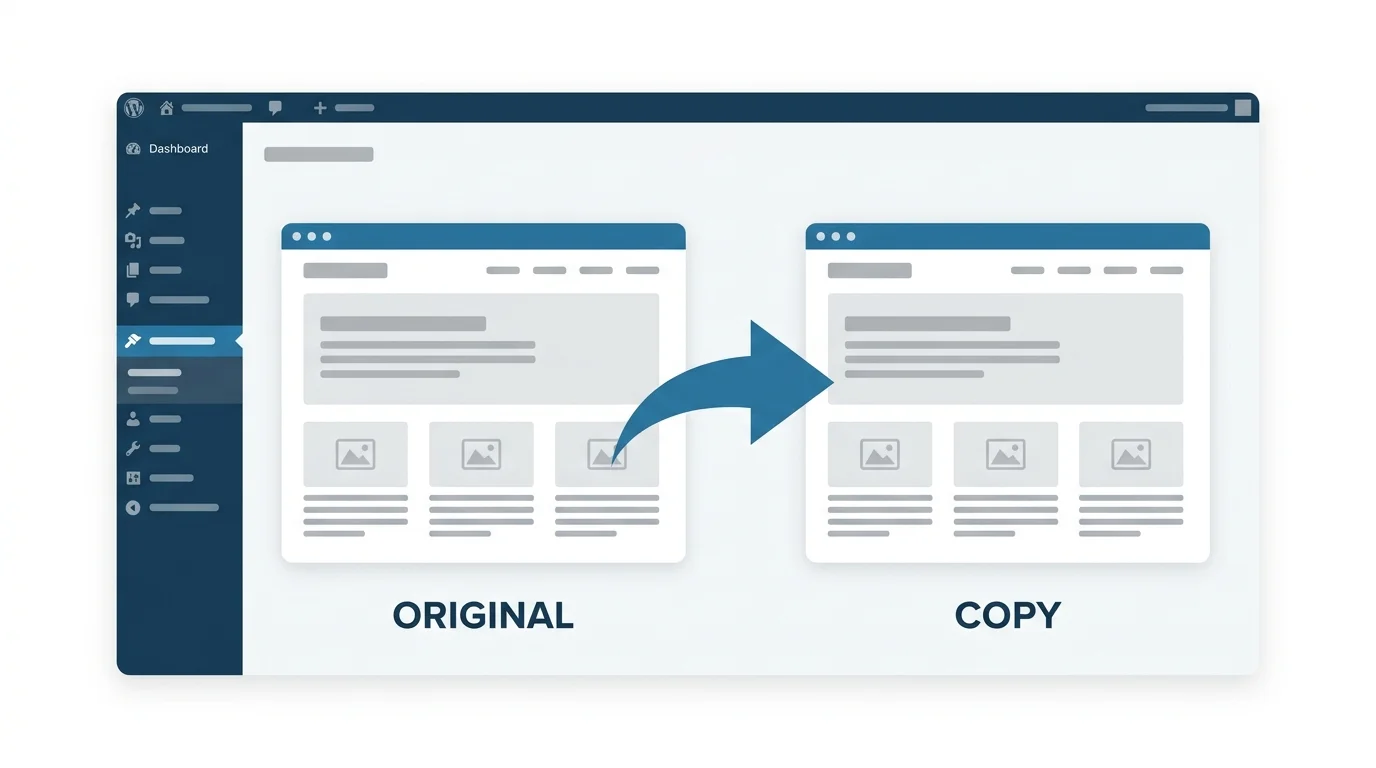
If you have ever spent hours building a WordPress page only to realize you need a nearly identical version of it, you already know how frustrating it is to start from scratch. I have been there too. Whether you need to create a landing page variant, set up a similar service page, or just save time on layout work, knowing how to duplicate a page in WordPress is one of those skills that saves you real hours.
In this guide I will walk you through three practical methods to duplicate a WordPress page. You do not need to be a developer to follow along. I will cover the plugin method, the manual method, and a code-based option for those who want more control.
Why WordPress Does Not Have a Built-In Page Duplication Feature
This is one of the first questions people ask when they start using WordPress. The short answer is that WordPress was built with simplicity and flexibility in mind. The core software intentionally stays lightweight and leaves advanced functionality to plugins.
Duplication might seem like a basic feature, but WordPress treats every page and post as a unique piece of content. The developers made a deliberate choice to keep the core clean and let the plugin ecosystem handle specialized tasks like content cloning and duplication.
Adding this ability takes less than two minutes regardless of which method you choose, and once it is set up, duplicating any page becomes a one-click process. Once you set it up using any of the methods below, duplicating a page becomes a one-click process that you will wonder how you ever lived without.
Method 1 : Duplicate a WordPress Page Using a Plugin
The plugin method is by far the easiest and most reliable way to duplicate a page in WordPress. I recommend this approach for anyone who is not comfortable editing code. There are two popular plugins that handle this really well.
Using the Duplicate Page Plugin (2 Million+ Installs)
The Duplicate Page plugin is one of the most installed tools in the WordPress repository for a reason. It is simple, reliable, and does exactly what the name says.
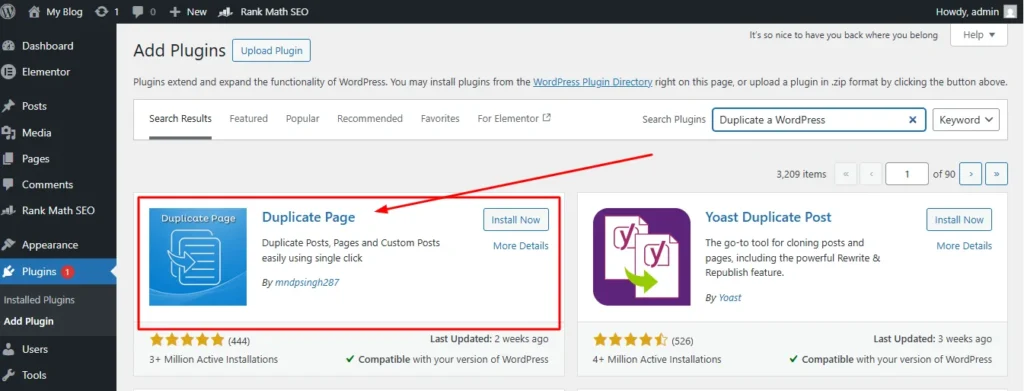
Here is how to set it up and use it:
Step 1. Go to your WordPress dashboard and click Plugins in the left sidebar. Then click Add New.
Step 2. In the search bar, type “Duplicate Page” and look for the plugin by mndpsingh287. It has over two million active installs, so it is easy to spot.
Step 3. Click Install Now and then Activate.
Step 4. Once activated, go to Pages and hover your mouse over any page title. You will now see a new option called “Duplicate This” appear below the title.
Step 5. Click “Duplicate This” and the plugin instantly creates a draft copy of that page.
Before you start duplicating pages, I recommend visiting Settings and then Duplicate Page from your dashboard. Inside the settings panel you can choose your preferred editor (Gutenberg or Classic Editor), set the default status of duplicated pages (Draft is the safest choice), and decide where WordPress redirects you after duplication.
One small tip that saved me a lot of confusion: add the word “copy” as a title suffix in the settings. That way every duplicated page shows up in your list with a clear label and you never mix it up with the original.
Using Yoast Duplicate Post (3 Powerful Options Explained)
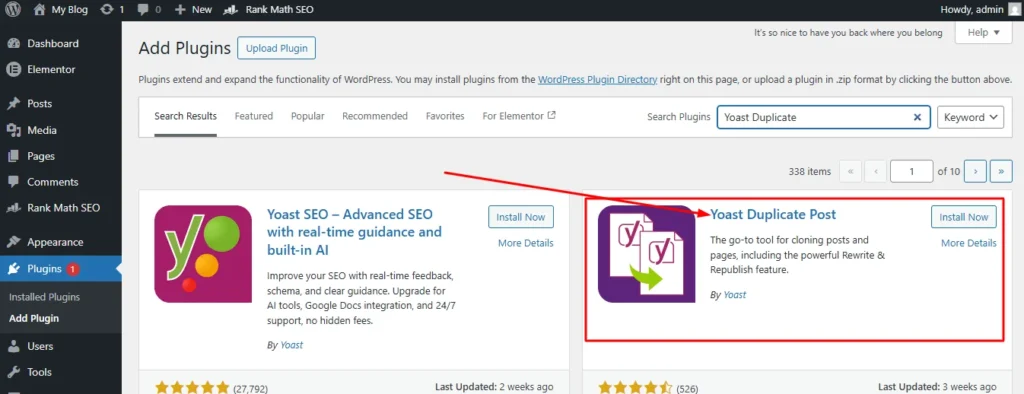
Yoast Duplicate Post is another excellent choice and it comes from the same team behind the famous Yoast SEO plugin. What makes it stand out is that it gives you three different ways to duplicate content instead of just one.
Install it the same way you installed the Duplicate Page plugin. Once it is active, go to your Pages list and hover over any page title. You will see three new options appear.
Clone. This creates a duplicate draft quietly in the background without taking you anywhere. The new draft simply appears in your pages list. This is the option I use most often because it keeps my workflow uninterrupted.
New Draft. This does the same thing as Clone but immediately opens the new draft in the editor. Use this when you want to start editing the duplicate right away.
Rewrite and Republish. Use this with caution. It creates an editable duplicate, but clicking Republish permanently replaces your original live page with the new version. It is great for safely updating published content, but risky if used by mistake. For everyday duplication, stick to Clone or New Draft. This can be very useful for updating published content safely, but it is easy to accidentally overwrite something important if you are not careful. Stick to Clone or New Draft for standard duplication work.
One thing I genuinely appreciate about Yoast Duplicate Post is that it works perfectly with Elementor and other page builders. The layout, blocks, and formatting all carry over exactly as they appear on the original page.
Duplicate Page Plugin vs Yoast Duplicate Post : Which One Should You Use?
Both plugins are free, reliable, and regularly updated. Here is a quick side-by-side look to help you decide.
| Feature | Duplicate Page | Yoast Duplicate Post |
|---|---|---|
| Ease of Use | Very Easy | Easy |
| One-Click Duplication | Yes | Yes |
| Multiple Clone Options | No | Yes (Clone, New Draft, Rewrite) |
| Settings Panel | Yes | Yes |
| Page Builder Support | Yes | Yes |
| Best For | Beginners | Users who want more control |
My honest recommendation is this. If you just want a fast and simple solution, go with Duplicate Page. If you want extra flexibility and work with content updates regularly, Yoast Duplicate Post is the better pick.
Method 2 : Duplicate a WordPress Page Without a Plugin
Sometimes you do not want to add another plugin to your site. Maybe your site already has too many plugins, or you just prefer keeping things clean. I completely understand that mindset. Here are two ways to duplicate a page without installing anything.
Step-by-Step Manual Method Using the Block Editor
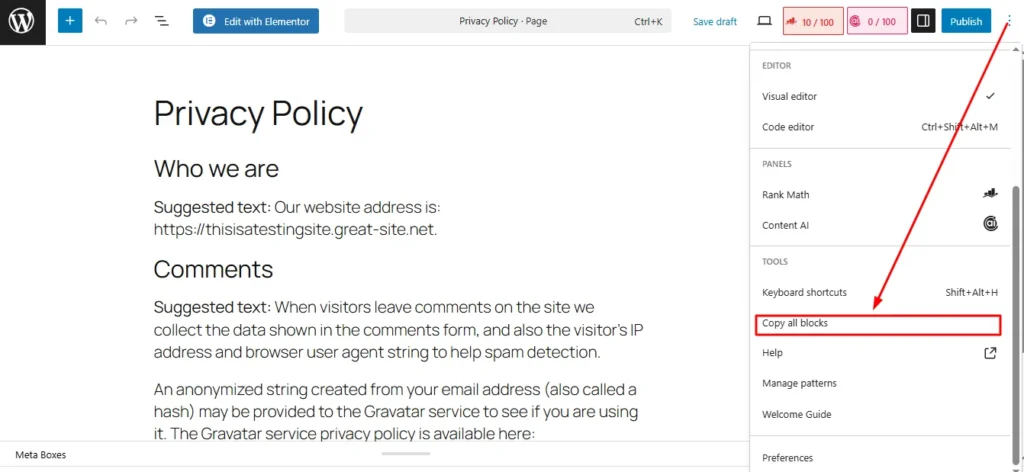
This method works directly inside the WordPress Block Editor, also known as Gutenberg. It is not as seamless as a plugin but it gets the job done.
Step 1. Open the page you want to duplicate in the editor.
Step 2. Click the three-dot menu icon in the top right corner of the editor toolbar to open the options menu.
Step 3. Select “Copy All Content” from the dropdown menu.
Step 4. Now go back to your Pages list and click Add New Page.
Step 5. Give the new page a title.
Step 6. Click inside the editor area and paste using Ctrl+V on Windows or Cmd+V on Mac. All your content blocks will appear instantly.
There is one important thing to do before you publish. Go to the page settings on the right side and update the permalink slug. If you skip this step, WordPress will generate a URL that looks messy or conflicts with your original page structure.
I also want to be upfront about what this method does not copy. Your SEO meta title and description, featured image, and any custom page settings do not transfer with this approach. You will need to set those up manually on the new page.
Advanced Method : Duplicate Pages Using a PHP Code Snippet
This method is for users who are comfortable working with WordPress code. It adds a permanent Duplicate button to your pages and posts without relying on a plugin.
Before I explain this, I want to be very clear about something. Editing your theme’s functions.php file incorrectly can break your website and take your site offline. If you are not comfortable with PHP, please use the plugin method instead.
If you want to proceed, here are the steps:
Step 1. Go to Appearance and then Theme File Editor in your dashboard.
Step 2. Make sure you are using a Child Theme before making any changes. If you edit the parent theme’s functions.php file directly, your changes will be lost the next time the theme updates.
Step 3. Find functions.php in the file list on the right side.
Step 4. Paste the duplication code snippet at the end of the file and click Update File.
Once the code is saved, a Duplicate button will appear when you hover over pages, posts, and even custom post types in your dashboard.
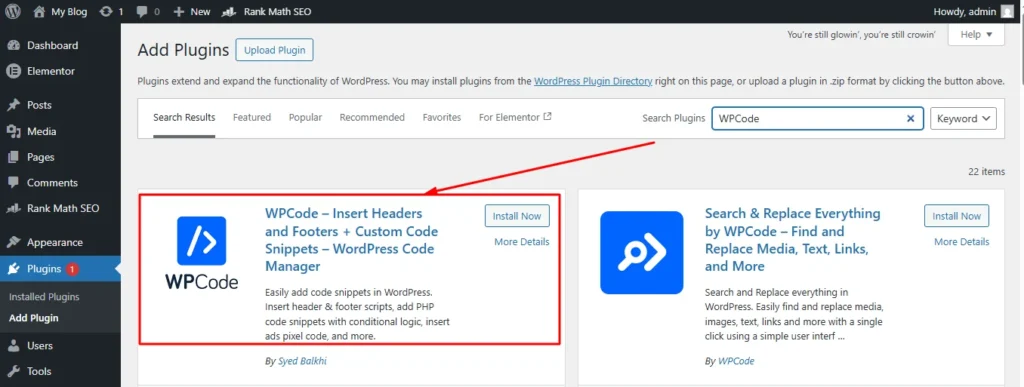
A much safer option is the free WPCode plugin. Install it, go to Code Snippets, click Add New, paste your duplication code, and activate it. No theme file editing required and zero risk of accidentally breaking your site. I personally prefer this approach because it reduces the risk of accidentally breaking something. Whenever you’re working with code or theme files, following WordPress security best practices helps protect your site from errors and vulnerabilities.
How to Duplicate a WordPress Post
Good news here. The process for duplicating a WordPress post is completely identical to duplicating a page. Whether you use the Duplicate Page plugin, Yoast Duplicate Post, or the manual method, everything works exactly the same way in the Posts section of your dashboard.
The one thing to pay attention to is the URL slug. When WordPress creates a duplicate post, it often adds a “-2” at the end of the slug automatically. For example, if your original post slug is /my-best-recipe/ then the duplicate might become /my-best-recipe-2/. Always update this before publishing so your new post has its own clean and meaningful URL.
Posts and pages work differently in WordPress. Posts are time-based content designed for your blog, like news updates and articles. Pages are static content like your About page or Contact page. But as far as duplication goes, the tools and steps are the same for both.
Duplicate Pages in Elementor, Divi and Other Page Builders
Many WordPress users build their pages using visual page builders rather than the native Block Editor. If you’re a user of Elementor, Divi, or similar tools, you might be wondering whether these duplication methods still work.
As a user of these tools, you might be wondering whether these duplication methods still work. The answer is yes, but there are some builder-specific options worth knowing about.
Duplicating an Elementor Page in WordPress
Both the Duplicate Page plugin and Yoast Duplicate Post work perfectly with Elementor. When you clone an Elementor page using either plugin, the entire layout including all sections, columns, widgets, and styling transfers to the new page without any issues.
Elementor also has its own built-in way to save and reuse layouts. You can save any page as a template inside Elementor by clicking the folder icon at the bottom of the editor and choosing Save as Template. This gives you a reusable starting point that you can apply to any new page. It is not exactly the same as duplicating a live page, but it is a powerful alternative for creating consistent layouts across your site.
Duplicating a Divi Page in WordPress
Divi by Elegant Themes has a built-in duplication feature inside its own builder. When you are editing a page in the Divi Builder, you can save the entire layout as a Divi Library template. You can then load that template on any other page.
Divi also works without issues alongside the two plugins mentioned earlier. If you prefer a consistent workflow across all your page types, using the Duplicate Page plugin alongside Divi gives you the simplest experience.
Does the Plugin Method Work With All Page Builders?
Yes. Both Duplicate Page and Yoast Duplicate Post store page content in the WordPress database the same way regardless of which builder you used to create it. When you clone a page, everything stored in the database for that page gets copied, including the builder data. I have personally tested this with Elementor and Beaver Builder and the results were clean copies every time.
I have also tested it with Oxygen Builder and the duplication worked without any issues there as well.
WordPress Duplicate Page Not Working : 5 Common Fixes
Even with a good plugin installed, sometimes things do not go as expected. Here are the most common issues I have seen and exactly how to fix each one.
Fix 1 : Plugin Conflict Is Blocking the Duplicate Option
If you installed the plugin but nothing seems to happen when you try to duplicate, another plugin on your site may be interfering. The fastest way to check is to temporarily deactivate your other plugins one by one and test the duplicate function after each one. When the duplicate option starts working again, you have found the conflicting plugin.
You can then look for an updated version of that plugin or contact its support team. Most plugin conflicts like this get resolved with a simple update.
Fix 2 : The Duplicate Option Is Not Showing on Hover
If you hover over a page title and do not see the Duplicate This or Clone option, the first thing to check is whether the plugin is actually activated. Go to your Plugins list and confirm it shows as Active.
If it is active and the option still does not appear, try clearing your browser cache and refreshing the page. Sometimes the dashboard display does not update immediately after plugin activation and a simple refresh fixes it.
Fix 3 : Duplicate Creates a Blank Page Instead of Full Content
This usually happens when there is a compatibility issue between the plugin and your page builder. Elementor stores page content in a special format that some older plugin versions do not handle correctly.
The fix here is to update both your page builder and the duplication plugin to their latest versions. After updating, try duplicating again. In most cases this resolves the blank page issue completely.
Fix 4 : The New Page Has the Same URL as the Original
This is one of the most important issues to catch before you publish a duplicated page. WordPress sometimes assigns a very similar or even identical URL structure to the cloned page, which can cause confusion for both visitors and search engines.
Always check the permalink of your duplicated page before publishing. Go to the page editor, look at the URL in the settings panel on the right side, and change it to something unique and descriptive. Never publish two pages with the same or nearly identical URLs.
If you are not sure what to change the slug to, use a short, descriptive phrase that reflects the new purpose of the page.
Fix 5 : Duplicate Page Is Not Copying Images or Media
This one surprises a lot of people. When you duplicate a page, the images on that page are not copied to a new location. They are simply linked again from the same files in your media library. This is actually normal and expected behavior.
What this means in practice is that if you delete the original page or its images later, those images will also disappear from your duplicated page. If you need completely independent copies of images, you will need to upload fresh versions manually to the media library.
This is actually good news for storage efficiency because your media library does not get bloated with unnecessary duplicate files.
5 Things to Do After Duplicating a WordPress Page
Duplicating a page and creating a copy is just the first step. What you do next determines whether that new page helps or hurts your site. Here is my personal checklist for every page I duplicate.
1. Update the Page Title Immediately
The duplicated page will have the same title as the original, often with a “copy” label added. Change this to a proper title that accurately reflects what the new page is about. A clear title also helps your visitors and search engines understand the page from the start.
2. Change the Permalink Before Publishing
I cannot stress this enough. The URL slug of your new page needs to be unique. Go into the page editor, click on the permalink below the title, and type a clean and relevant slug. Do this before anything else because changing the permalink after publishing creates redirect complications.
3. Remove or Update Any Duplicate Meta Descriptions
If you use an SEO plugin like Yoast SEO or Rank Math, check the meta description and SEO title on your new page. They will likely be identical to the original. Write fresh meta content that is specific to the new page. Having identical meta descriptions across two pages is a missed opportunity and can sometimes confuse search engines about which page to rank. This is also a good time to optimize your SEO metadata with relevant keywords for your new page.
4. Check Internal Links That May Point to the Original
Sometimes a page you duplicate contains internal links pointing to other pages or even to itself. Go through the duplicated page in the editor and check each link to verify where it points.
If a link was designed to send readers back to the original page for a specific purpose, decide whether the duplicated page needs a different destination. This is especially important for call-to-action buttons and navigation links.
5. Keep the Page as Draft Until Your Edits Are Complete
Never publish a duplicated page before you have finished editing it. A duplicate that goes live too early can appear in search results with thin or identical content before you have had a chance to make it unique. Keep it in Draft mode the entire time you are working on it and only publish when it is fully ready.
Frequently Asked Questions
Can I Duplicate a Page in WordPress Without a Plugin?
Yes, you can. The manual method using the Block Editor lets you copy all page content and paste it into a new page without installing anything. There is also a PHP code snippet method for more advanced users. The plugin method is still the easiest and most complete option, but both plugin-free methods work well for basic duplication needs.
Does Duplicating a Page Copy the SEO Settings Too?
It depends on which method you use. Plugins like Yoast Duplicate Post can copy SEO metadata if you configure them to do so. The manual copy-paste method does not copy SEO settings, featured images, or custom page attributes. You will need to set those up fresh on the new page regardless of which method you choose.
Will Duplicating a Page Hurt My Google Rankings?
Duplicating a page does not create duplicate content issues as long as you customize the new page before publishing it. Duplicate content becomes a problem only when two pages are nearly identical and both are live at the same time. As long as your duplicated page has a unique title, a different URL, and its own updated content, Google will treat it as a separate page with no ranking penalty.
How Do I Duplicate Multiple Pages at Once in WordPress?
Neither of the popular plugins supports bulk duplication natively. You would need to duplicate each page individually. If you have a large number of pages to clone, some advanced WordPress migration tools and staging site workflows can help with bulk operations, but for most users duplicating one page at a time is the practical approach. One workaround is to use a WordPress XML export and import to move multiple pages to another site at once, though this is more of a migration method than true bulk duplication.
What Happens to the URL When I Duplicate a WordPress Page?
WordPress automatically generates a new URL for the duplicate, usually by adding a number or the word “copy” to the original slug. For example /about-us/ might become /about-us-2/. You should always change this to a clean and relevant URL before publishing the duplicated page.
Can I Duplicate a Password-Protected Page in WordPress?
Yes. Both the Duplicate Page plugin and Yoast Duplicate Post will clone a password-protected page along with its content. The password protection setting does transfer to the duplicate as well. You can remove or change the password on the new page after duplication if you want it to behave differently from the original.
Start Duplicating Your WordPress Pages the Right Way
Now you have everything you need to duplicate any page in WordPress with confidence. To recap, the three methods are the plugin method using Duplicate Page or Yoast Duplicate Post, the manual copy-paste method inside the Block Editor, and the PHP code snippet method for advanced users.
For most people, I recommend starting with the Duplicate Page plugin. It is free, takes two minutes to set up, and works reliably across all types of WordPress sites including those built with Elementor, Divi, or any other page builder.
Whichever method you choose, remember to update the page title, change the permalink, and customize the content before publishing. Those three steps alone will keep your site clean, SEO-friendly, and performing at its best.
If you tried to duplicate a page in WordPress and ran into an issue I did not cover here, drop a comment below with the details. I check comments regularly and I am happy to help you figure out what is going wrong. Every WordPress setup is a little different and sometimes a specific situation needs a specific answer.