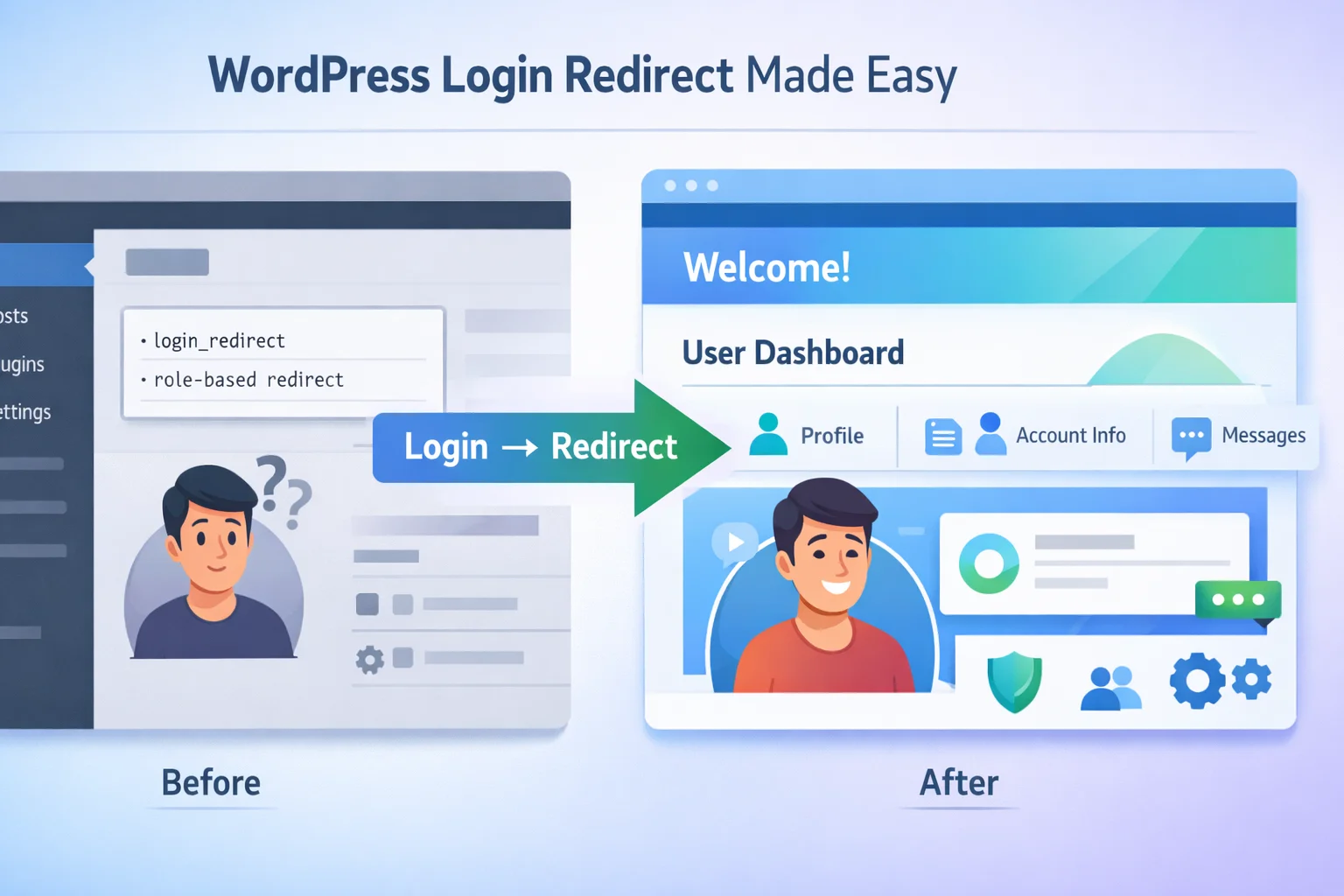
Setting up a WordPress redirect after login can transform your site’s user experience in under 30 minutes. Right now, every user who logs into your WordPress site—subscribers, customers, editors—lands in the admin dashboard. If you run a membership site, online store, or company intranet, this creates confusion and looks unprofessional.
I’ve been building WordPress sites since 2016, and fixing login redirects is always in my first-hour setup checklist. It takes about 20 minutes, and clients immediately notice the difference. In this guide, I’ll walk you through two proven methods for setting up a WordPress redirect after login to a specific page—plus critical mistakes that other tutorials completely ignore.
Why WordPress Sends Every User to the Admin Dashboard by Default
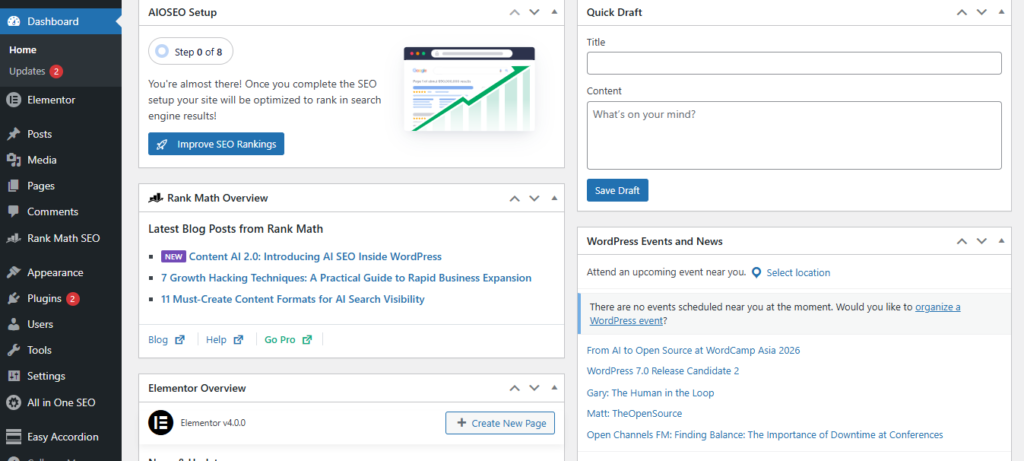
WordPress started as a blogging platform back in 2003. The admin dashboard made perfect sense then—bloggers logged in specifically to write posts. But that’s not how we use WordPress anymore.
Most WordPress sites today are membership platforms, online stores, or community hubs. When wordpress users are sent to admin dashboard after login, they get confused. Your subscribers aren’t there to write content. Your customers just want to check their orders. Showing them the backend creates unnecessary friction and honestly looks amateurish.
Here’s what surprised me when I first dug into WordPress security: even subscribers with zero permissions can see your admin interface layout, installed plugins, and menu structure. That’s information leakage you don’t need. Redirecting users away from the backend isn’t just smoother UX—it’s basic security hygiene.
If you’re running a membership site, e-commerce store, or business intranet, custom login redirects aren’t optional—they’re table stakes for a professional user experience. The good news? The fix is simpler than you’d think.
Which Method Should You Use? Pick Based on Your Site Type
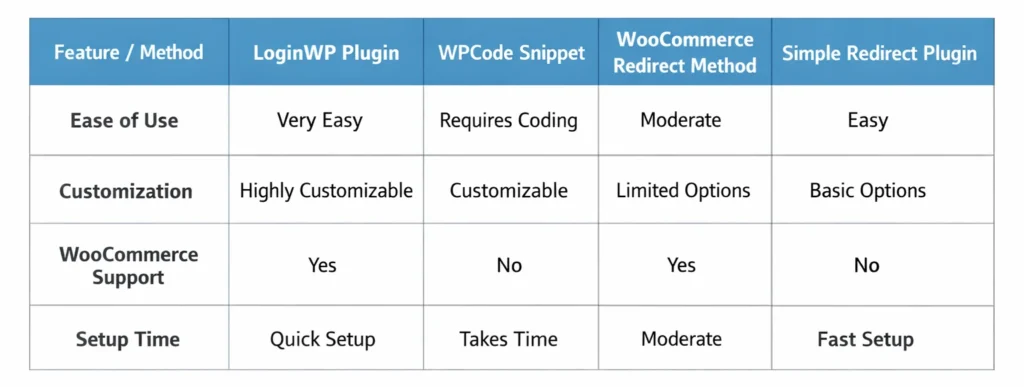
Let’s figure out which method fits your site before you start clicking around. Your choice depends on whether you need a simple global redirect or advanced wordpress redirect user by role after login functionality.
Running a membership site with multiple user roles? LoginWP gives you granular control—you can set different redirect destinations per role, per user, even per capability.
WooCommerce stores need special handling. The standard redirect code breaks during checkout (I’ll show you why and how to fix it below), so you’ll want the woocommerce redirect after login to account page approach I cover in Method 2.
I personally use the WPCode plugin method on most client sites. It keeps plugin count low, you don’t need to touch functions.php, and it survives theme updates automatically.
Need something dead simple? WP Login and Logout Redirect literally has two fields: where users go after login, where they go after logout. Takes two minutes to configure.
Choose your method based on the guidance above, then skip straight to that section. No point reading through approaches that don’t fit your setup.
Method 1 : Use a Plugin (Fastest, No Coding Required)
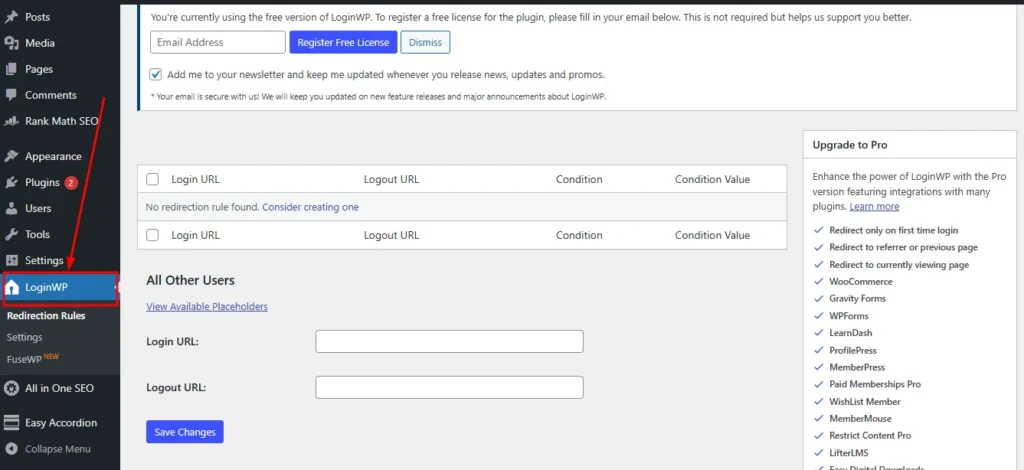
Want to set up a wordpress redirect after login without touching any code? LoginWP (formerly Peter’s Login Redirect) is my go-to plugin recommendation. I’ve used it on over 30 client sites since 2017, and it handles everything from simple global redirects to complex role-based rules.
The setup takes about three minutes:
Install LoginWP from your WordPress plugin directory (it’s free). After activation, head to Settings > Login/Logout Redirects. You’ll see fields for different redirect rules—start with the simplest one and enter the URL where you want users to land after login. Save it.
Done. Your redirect is live.
But here’s where most tutorials stop, and where I see people run into trouble a week later.
The “All Other Users” Fallback Rule You Should Always Set
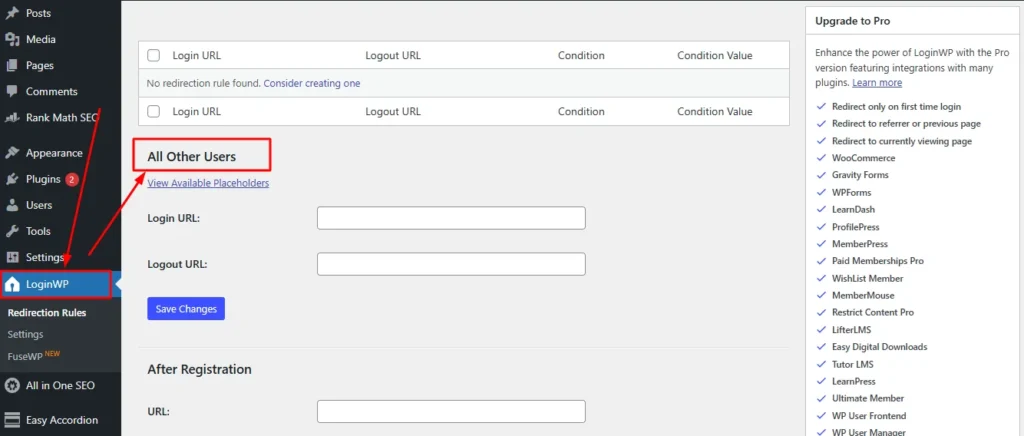
LoginWP lets you set redirect rules for specific roles, users, and capabilities. But if you configure Subscriber and Customer rules without setting an “All Other Users” fallback, anyone with a different role (Contributor, Author, etc.) still lands in the WordPress dashboard.
I’ve seen this bite people two weeks after launch when they add a new team member with Editor access.
Fix: Scroll to the “All Other Users” section in LoginWP and set a catch-all URL. This ensures everyone lands somewhere intentional, even roles you haven’t explicitly configured yet.
Two More Plugin Options If You Want Something Simpler
LoginWP might be overkill if you’re running a simple site. Two lighter alternatives:
Sky Login Redirect has a cleaner interface for role-based redirects. New to WordPress? This one’s easier to wrap your head around than LoginWP’s full feature set.
WP Login and Logout Redirect is as simple as plugins get—two fields total. One for post-login destination, one for post-logout. If you don’t need role-specific logic, this takes two minutes to configure.
Method 2 : Add Custom PHP Code (No Extra Plugin Needed)
Prefer to keep your plugin count low? The PHP method gives you complete control using WordPress’s built-in login_redirect filter wordpress functions.php hook. This filter fires after authentication but before the browser redirects, letting you change the destination programmatically
One critical thing before I share the code…
The Safer Way : Use WPCode Instead of Editing functions.php
Most tutorials tell you to paste redirect code into your theme’s functions.php file. Don’t do this. One syntax error in functions.php triggers the White Screen of Death and locks you out completely.
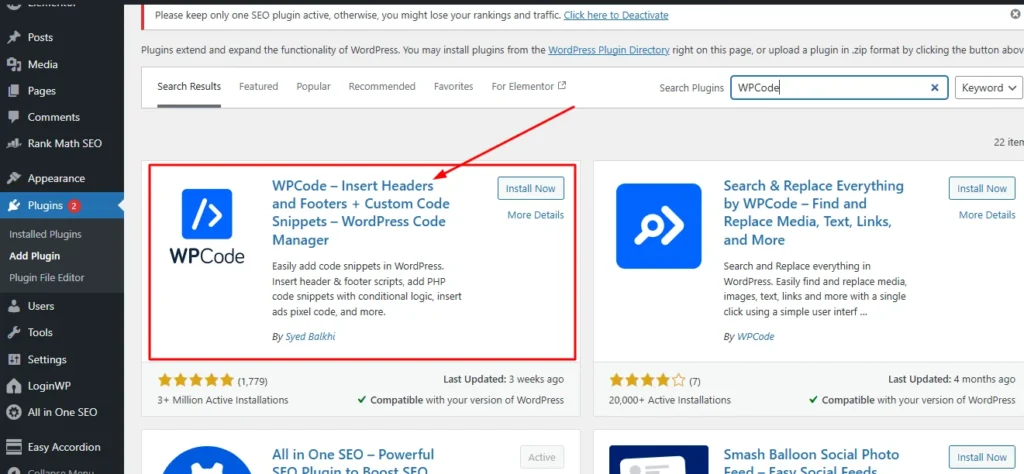
I use WPCode (also called Code Snippets) instead. It’s free, and if your snippet has a PHP error, the plugin catches it before your site crashes. Bonus: your code survives theme updates, and you don’t need a child theme.
Adding your redirect code through WPCode:
Install WPCode (free version) from your plugin directory. Navigate to Code Snippets > Add Snippet, then choose “Add Your Custom Code (New Snippet)” and select PHP Snippet as the type.
Title it something obvious like “Login Redirect” so you can find it six months from now. Paste your PHP code in the box, set it to “Run Everywhere,” and activate.
Your redirect is live—and you never touched functions.php.
How the login_redirect Filter Actually Works
The login_redirect filter passes three parameters to your function: where WordPress wants to send the user, what page they requested originally, and the user object (which contains their role). Your code reads these values and returns whatever URL you want instead.
Basic example—this redirects everyone except administrators to a custom page:
php
function custom_login_redirect( $redirect_to, $request, $user ) {
    if ( isset( $user->roles ) && is_array( $user->roles ) ) {
        if ( in_array( 'administrator', $user->roles ) ) {
            return $redirect_to;
        } else {
            return home_url( '/your-custom-page/' );
        }
    }
    return $redirect_to;
}
add_filter( 'login_redirect', 'custom_login_redirect', 10, 3 );
Replace /your-custom-page/ with your actual page slug. The logic is simple: if the user is an administrator, leave them alone—they go to the dashboard. Everyone else gets redirected to your custom page.
The priority value (10) in add_filter tells WordPress when to run your code. Priority 10 means it runs after WordPress sets its default redirect but before the browser actually goes anywhere.
How to Send Different Users to Different Pages Based on Their Role
A single redirect works great for simple sites. Once you’re managing multiple user types—subscribers, customers, editors, different membership tiers—you need role-based redirect logic. That’s where wordpress redirect user by role after login functionality becomes essential.
The logic: check the user’s role, send them somewhere appropriate. Administrators → dashboard. Subscribers → welcome page. Editors → posts list. WooCommerce customers → account page.
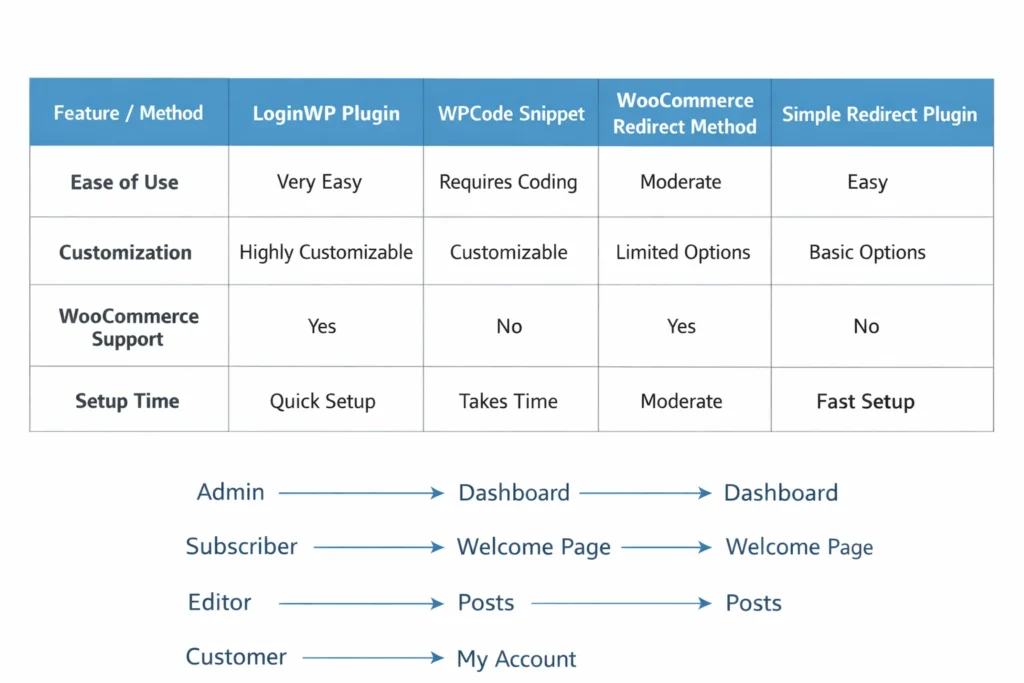
Beyond UX, this is basic security. Redirecting non-admin users away from the backend reduces the chance they’ll accidentally (or intentionally) click into areas they shouldn’t access. I’ve seen Subscribers break custom post types just by exploring the interface. If you want to take backend protection a step further, changing your WordPress login URL is another layer worth adding alongside role-based redirects.
In LoginWP, you set this up visually—no code required. Go to Settings > Login/Logout Redirects, find the role-based section, and assign a specific URL to each role you want to handle.
For the code method, you extend the function above with additional role checks:
php
function custom_role_based_redirect( $redirect_to, $request, $user ) {
    if ( isset( $user->roles ) && is_array( $user->roles ) ) {
        if ( in_array( 'administrator', $user->roles ) ) {
            return admin_url();
        } elseif ( in_array( 'editor', $user->roles ) ) {
            return admin_url( 'edit.php' );
        } elseif ( in_array( 'subscriber', $user->roles ) ) {
            return home_url( '/welcome/' );
        }
    }
    return home_url();
}
add_filter( 'login_redirect', 'custom_role_based_redirect', 10, 3 );
Redirect Subscriber to Homepage After Login WordPress: The Most Common Use Case
The most common scenario: redirect subscriber to homepage after login wordpress. Subscribers are readers, members, or customers who signed up for content access—they don’t need the admin interface.
In LoginWP, find the Subscriber role row and enter your homepage URL (or better yet, a dedicated “Welcome” or “Start Here” page that orients new users and tells them what to explore first).
In the code method, use home_url() for the subscriber condition like the example above.
Locking Down Who Can Change Your Redirect Settings
Critical setting most people miss: LoginWP has a permission control that determines who can edit your redirect rules. By default, this can be accessible to Editors and other roles—not just Administrators.
Lock it down. Set the permission requirement to “Install Plugins” capability, which restricts editing to Administrators only. You’ll find this in the LoginWP redirect configuration area. This prevents Editors or Contributors from accidentally changing your carefully configured redirects.
WooCommerce Redirect After Login to Account Page : What’s Different
Running WooCommerce? The standard login_redirect filter won’t work correctly. WooCommerce uses its own authentication flow with a dedicated woocommerce_login_redirect hook. If you’re still in the early stages of setting up your store, it’s also worth making sure you’re running one of the best ecommerce WordPress themes — a well-built theme prevents a lot of the redirect conflicts I’ll describe below.
The default destination for WooCommerce customers is the My Account page—where they view orders, track shipments, and manage account details. This makes sense for most stores, and the code below shows you how to enforce it (even when other plugins try to interfere).
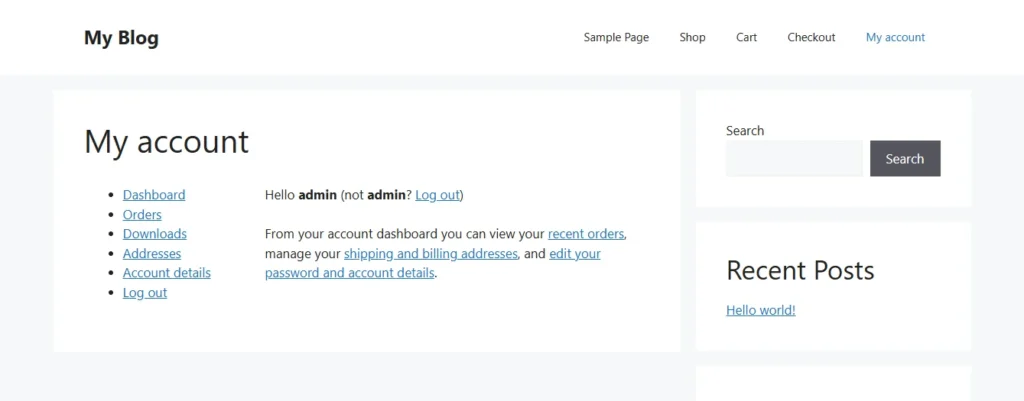
Basic code to redirect WooCommerce customers to the My Account page:
php
add_filter( 'woocommerce_login_redirect', 'custom_woo_login_redirect', 10, 2 );
function custom_woo_login_redirect( $redirect, $user ) {
    return wc_get_page_permalink( 'myaccount' );
}
This uses WooCommerce’s own function to get the my account page URL, which means it works correctly even if you change the page URL later.
The Checkout Page Problem That Breaks WooCommerce Redirects
This mistake costs WooCommerce stores real money.
When a customer is mid-checkout and clicks login, your generic redirect code fires immediately after authentication. It yanks them away from checkout and drops them on your homepage or My Account page. The cart is still there, but the purchasing momentum is broken. Plenty of customers won’t navigate back—they’ll just leave.
The fix: check if the user was on the checkout page before login. If yes, skip your redirect and let them complete the purchase:
php
add_filter( 'woocommerce_login_redirect', 'custom_woo_login_redirect', 10, 2 );
function custom_woo_login_redirect( $redirect, $user ) {
    $checkout_url = wc_get_checkout_url();
    if ( strpos( $redirect, $checkout_url ) !== false ) {
        return $redirect;
    }
    return wc_get_page_permalink( 'myaccount' );
}
The code checks the $redirect parameter for the checkout URL. If it finds it, the customer gets sent back to checkout—not your My Account page. Everyone else lands on My Account. This one conditional protects your checkout flow without breaking the general redirect behavior.
The Smart Redirect That Sends Users Back to Whatever Page They Were On
Most tutorials redirect everyone to a fixed page. That works, but here’s a smoother approach: send users back to whatever page they were viewing before they logged in.
Real-world scenario: A visitor finds a members-only article they want to read. They click login, authenticate, and land right back on that article—ready to continue reading. No generic welcome page, no hunting for the content they wanted. The experience feels seamless.
This is called a dynamic redirect. It captures the referrer URL (the last page before login) and uses that as the post-login destination. If there’s no referrer—like when someone navigates directly to the login page—it falls back to your default destination.
I’ve had clients report better content engagement after implementing this. Users don’t abandon articles mid-read to log in, because they know they’ll land right back where they were.
Best use cases: content sites, forums, membership platforms, and any site where users discover specific pages through search or social media before realizing they need an account to access the full content.
3 Mistakes That Break Your WordPress Login Redirect
The redirect setup is straightforward, but I see the same three mistakes destroy otherwise solid implementations:
Mistake 1: Creating a redirect loop
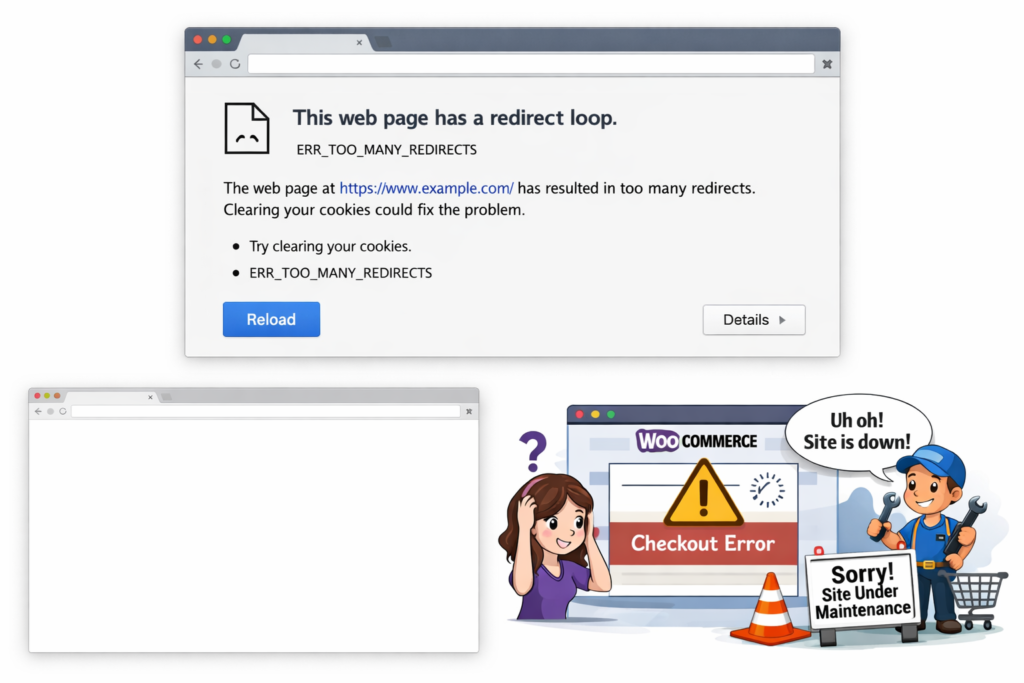
You send logged-in users to /welcome/, but /welcome/ is also protected by a membership plugin. User logs in → gets redirected to /welcome/ → membership plugin demands login → user gets sent to login page → infinite loop. Browser shows “too many redirects” error.
Fix: Make sure your redirect destination is accessible to logged-in users. Don’t send people to a page that has its own login requirement.
Mistake 2: Editing functions.php without a backup
One syntax error in functions.php = White Screen of Death = locked out of your site. Depending on your server setup, this can also surface as an HTTP 500 error with no clear message about what went wrong. I’ve fixed this for clients who added a redirect snippet and forgot a semicolon.
Use WPCode instead (covered in Method 2). It catches PHP errors before they crash your site. If you insist on editing functions.php directly, back up first—or better yet, test on a staging site.
Mistake 3: Breaking the WooCommerce checkout flow
If a customer logs in during checkout and your redirect code fires, you’ve just pulled them away from completing their purchase. They’ll land on your My Account page or homepage instead of finishing the transaction. This directly costs you sales.
Always add the checkout exception shown in the WooCommerce section above—it’s a two-line conditional that protects your revenue.
How to Test Your WordPress Redirect After Login to a Specific Page
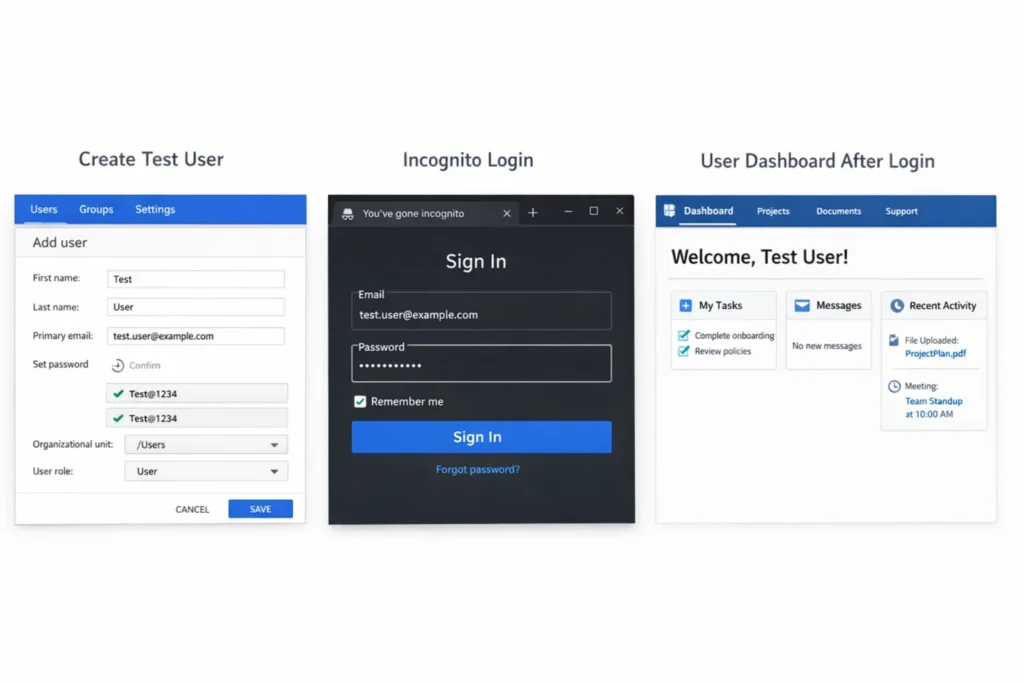
Don’t skip testing. A redirect that works for Administrators might fail silently for Subscribers. Here’s my testing checklist:Create test accounts for each role you’re redirecting. Testing Subscriber redirects? Make a test Subscriber account. Testing WooCommerce customers? Create a test Customer.
Use incognito/private browsing so you can stay logged into your admin account in your main browser while testing the user experience in the private window.
Log in with your test account and verify the landing page matches your configuration. Check the URL—don’t just glance at the page content.
Test every role separately. Just because your Subscriber redirect works doesn’t mean your Editor redirect is configured correctly. Test them all.
WooCommerce-specific test: Add a product to cart in incognito mode, proceed to checkout, then log in. You should land back on the checkout page, not My Account or homepage. This is the most critical test for stores—broken checkout redirects kill conversions.
What About Redirecting Users After They Register or Log Out?
Common misconception: setting up a login redirect automatically handles registration and logout redirects. It doesn’t. These are three separate events, each requiring its own configuration.
There are three separate redirect events in WordPress, and each one is configured independently.
WordPress has three independent redirect events:
Post-login redirect — Existing users logging in (what this entire guide covers)
Post-registration redirect — New users completing signup for the first time. Send them to a welcome page, onboarding guide, or “getting started” checklist. In LoginWP, there’s a dedicated registration redirect field. In WPCode, you’ll use a different hook than login_redirect.
Post-logout redirect — Users clicking logout. WordPress defaults to showing the login page again, which feels weird. Most sites redirect to the homepage instead just make sure your WordPress homepage settings are configured correctly first, since a misconfigured homepage can cause unexpected behavior when used as a redirect destination.
Pro tip: If you’re using WPCode, you can manage all three redirect types in a single organized snippet instead of scattering them across multiple plugins.
Bottom line: Login, registration, and logout redirects are independent. Configure each one explicitly—don’t assume your login redirect automatically handles the other two.
Frequently Asked Questions
Will my WordPress login redirect work if someone logs in from the WooCommerce checkout page?
Not with the standard login_redirect filter. WooCommerce overrides it during checkout. Use the woocommerce_login_redirect filter instead, and add the checkout exception I showed in the WooCommerce section to prevent pulling customers away mid-purchase.
Can I redirect users back to the page they were visiting before they logged in?
Yes—this is called a dynamic redirect. Instead of sending everyone to a fixed page, you capture the referrer URL and use it as the redirect destination. Check the “Smart Redirect” section above for the implementation.
Do I need to create a child theme just to add login redirect code?
No. Use the WPCode plugin instead. It lets you add PHP snippets safely without touching functions.php or setting up a child theme, and your code survives theme updates.
What is the difference between a login redirect and a registration redirect?
Login redirect fires when existing users log in. Registration redirect fires when new users complete signup. They’re separate events using different WordPress hooks, so you configure them independently.
How do I fix a redirect loop after setting up my WordPress login redirect?
Your destination page probably has its own login requirement. User logs in → gets redirected to /members/ → /members/ requires login → infinite loop. Fix: Make sure your redirect destination is accessible to authenticated users without additional login checks.
Which login redirect plugin is best for WordPress?
LoginWP for role-based redirects and advanced control. WP Login and Logout Redirect for simple global redirects. For WooCommerce stores, use the woocommerce_login_redirect hook with the checkout exception (code method is better than plugins here).
Can I redirect admin users to a different page than regular users?
Yes—that’s role-based redirects. Check the user’s role in your redirect function and return different URLs based on that role. I showed the exact code in the “Role-Based Redirect” section above.
Setting up a WordPress redirect after login to a specific page is one of those small changes that makes a real difference in how professional your site feels. Whether you go with a plugin or a code snippet, the important thing is that your users land somewhere intentional — not in the admin dashboard by accident. Take the extra step to test each role, handle the WooCommerce checkout exception if your site needs it, and configure your logout and registration redirects while you are at it. Get all three right and your site will feel polished from the very first login.