There Has Been a Critical Error on This Website WordPress : How to Fix It Fast

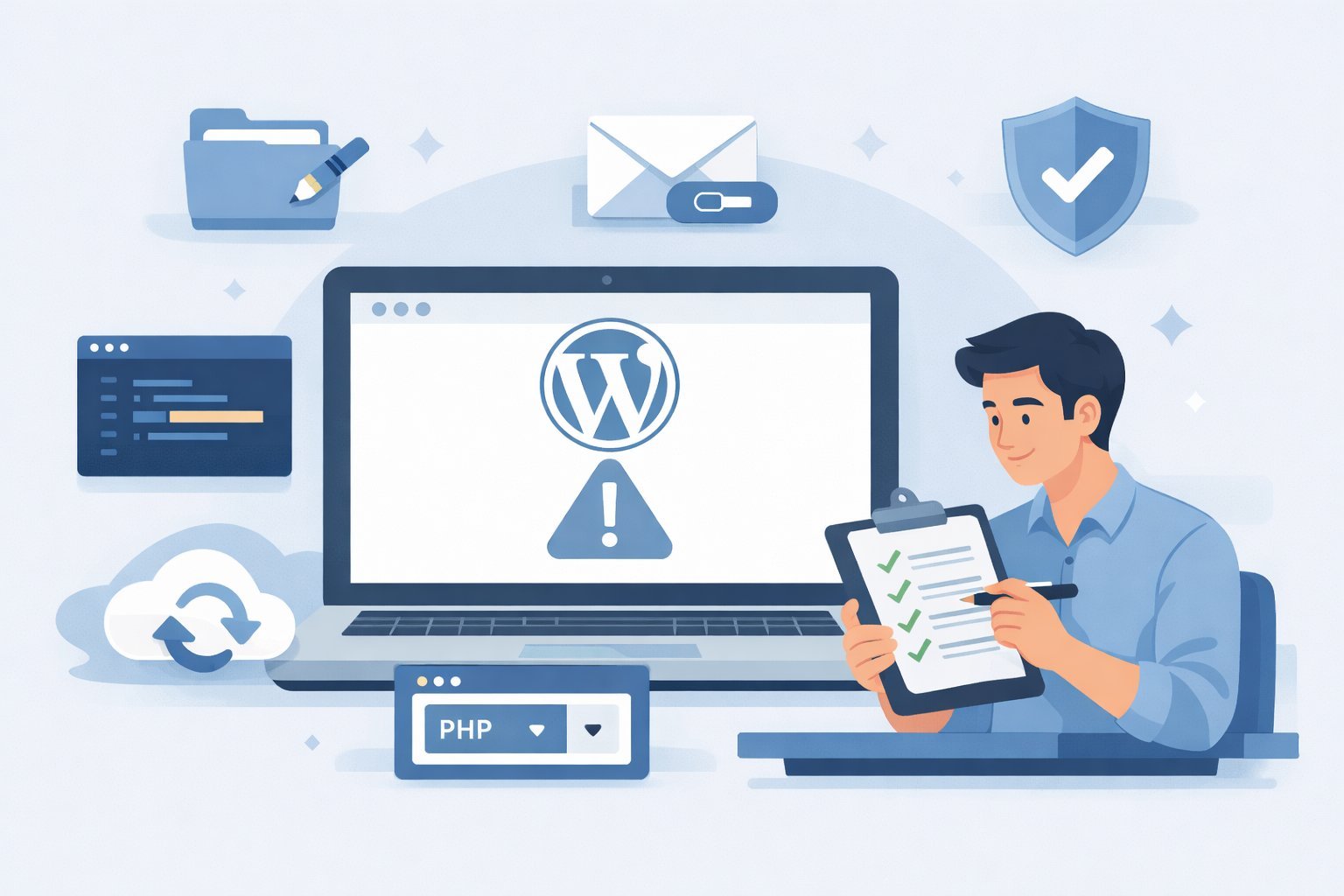
If you just saw this message on your WordPress site, I know exactly how you feel.. You have no idea what happened. I manage several WordPress sites and have dealt with this exact error at least a dozen times over the years. The first time it happened, I spent three hours trying random fixes I found on forums. Now I can recover a site in under 15 minutes. That experience is exactly what this guide is built on.
What Does “There Has Been a Critical Error on This Website” Mean in WordPress?
This message is WordPress telling you that something went wrong behind the scenes. In simple terms, a piece of code on your site failed to run properly, and WordPress could not recover from it on its own.
WordPress shows this generic message instead of the actual technical error on purpose. It protects your visitors from seeing confusing code details that mean nothing to them. The real error is hidden, but do not worry I will show you exactly how to find it later in this guide.
The good news is that this error almost never means your content, posts, or pages are deleted. Your data is almost always safe. What broke is a function, not your database.
Is This Error Dangerous for Your Website or Your Data?
No, this error is not dangerous in the way most people fear. Your posts, pages, images, and settings are stored in your WordPress database, and this error does not touch that. What failed is usually a plugin or theme file, not your core content.
Think of it like a car that will not start. The engine stalled, but your belongings inside the car are perfectly fine.
Why WordPress Shows This Message Instead of the Real Error
WordPress has a feature called fatal error protection. When a plugin or theme causes a crash, WordPress catches it and shows you this safe, friendly message instead of a screen full of red code. It also tries to send you an email with details about what broke.
The problem is that email does not always arrive. That is why knowing how to dig deeper yourself is so important.
What Causes the WordPress Critical Error? The 5 Most Common Reasons
In my experience, this error almost always comes from one of five causes. Knowing the cause helps you fix it faster.
1. A plugin that conflicts with your WordPress version This is the most common cause by far. When you update WordPress or install a new plugin, sometimes the old plugin code cannot handle the change. It crashes the whole site.
2. A theme with a broken or outdated code file Your active theme has files like functions.php that run every time someone visits your site. If that file has an error, your site goes down instantly.
3. An outdated PHP version on your hosting server WordPress runs on PHP. If your hosting server is running an old PHP version that is not compatible with your current plugins or WordPress version, you will see this critical error.
4. A recent WordPress core update Sometimes a WordPress update introduces changes that break older plugins or themes. If the error appeared right after an update, this is likely the cause.
5. A corrupted wp-config.php or functions.php file These are core configuration files. If they get corrupted through a bad edit, a failed update, or a file permission issue, WordPress cannot load properly.
Before You Fix Anything : Do These 3 Things First
I always tell people to pause and do three quick checks before jumping into fixes. It saves a lot of unnecessary work.
Check Your Email for a WordPress Recovery Link
When WordPress detects a fatal error, it automatically sends an email to your admin email address. This email contains a special recovery link that lets you log into a safe version of your dashboard without the broken plugin or theme loading.
Check your inbox right now. Check your spam folder too. If that email is there, Fix 1 below is your fastest path.
Write Down Exactly When the Error Started
Think back to the last thing you did on your site before the error appeared. A plugin installation, an update, or a file edit any of these is a strong clue. That single action is almost always the cause.If you updated three plugins this morning and the site broke shortly after, those plugins are your suspects.
Find Out if Your wp-admin Dashboard Is Still Accessible
Go to yoursite.com/wp-admin and see what happens. Sometimes the frontend of your site shows the critical error but the dashboard still loads. If you can get into the dashboard, you have more options available to you and the fix is much faster.
Fix 1 : Use WordPress Recovery Mode to Restore Your Site (Easiest Method)
This is always the first fix I try because it requires zero technical knowledge and takes less than two minutes.
What Is WordPress Recovery Mode?
WordPress Recovery Mode is a built-in safety feature introduced in WordPress 5.2. When a fatal error occurs, WordPress automatically emails your admin with a special link. Clicking that link opens a protected version of your dashboard where the broken plugin or theme is temporarily disabled so you can safely log in and fix the problem.
How to Use the Recovery Mode Link
Open the email from WordPress. It will have a subject line similar to “Your Site is Experiencing a Technical Issue.” Click the link inside. You will be taken to your WordPress login page. Log in with your usual admin credentials. Once inside, WordPress will show you exactly which plugin or theme caused the error.
What to Deactivate Once You Are Inside Recovery Mode
Once you are in recovery mode, go to your Plugins page. Deactivate the plugin that WordPress has flagged. Then go back to your site and refresh. If the site loads, that plugin was the problem. You can now either delete it, look for an update, or contact the plugin developer.
What If the Recovery Email Never Arrived?
This happens more often than it should. Some hosting configurations block outgoing emails from WordPress. If you did not receive the email, do not worry. Move on to Fix 2 below, which works without any email at all.
Fix 2 : Deactivate All Plugins via cPanel File Manager (Most Popular Fix)
This is the fix that works even when you have no dashboard access and no recovery email. I have used this method more times than I can count and it works almost every time.
How to Log Into cPanel and Open File Manager
Log into your hosting account. Look for cPanel in your dashboard. Inside cPanel, find the icon labeled File Manager and click it. This gives you direct access to all your website files without needing WordPress to load.
Where to Find the WordPress Plugins Folder
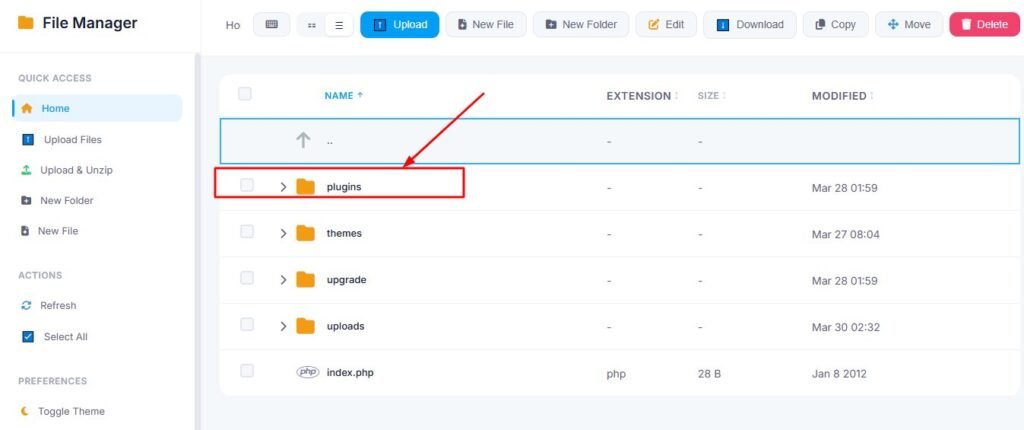
Inside File Manager, look for a folder called public_html. Open it. Then open the folder called wp-content. Inside wp-content you will see a folder called plugins. This is where all your WordPress plugins live.
The Rename Trick That Deactivates Every Plugin at Once
Here is the key step. Right-click the plugins folder and select Rename. Change the name from plugins to plugins_old. Click rename to save.
Now go back to your website and refresh the page. If your site loads, a plugin was causing the critical error. WordPress could not find the plugins folder, so it loaded without any plugins at all.
How to Find Which Plugin Was the Culprit
Now rename the folder back from plugins_old to plugins. Go to your WordPress dashboard. You will see a notice saying all plugins were deactivated. Now activate your plugins one by one and refresh your site after each activation. When your site breaks again, you have found the problem plugin. Leave it deactivated and contact the developer or delete it entirely.
What to Do Once You Find the Broken Plugin
You have three options. Delete the plugin and find an alternative. Wait for the developer to release a fix and then reinstall. Or reach out to the plugin support team with the error details. Most reputable plugin developers respond quickly to critical error reports.
Fix 3 : Deactivate a Faulty WordPress Theme Without Admin Access
If the plugin rename trick did not fix the error, your theme is likely the cause. Here is how to handle it.
How to Tell If Your Theme Is Causing the Error
If your site still shows the critical error after deactivating all plugins, the problem is almost certainly your active theme. Themes have their own PHP files, and a broken functions.php inside your theme will crash your site just as badly as a broken plugin.
Renaming Your Theme Folder to Force a Fallback
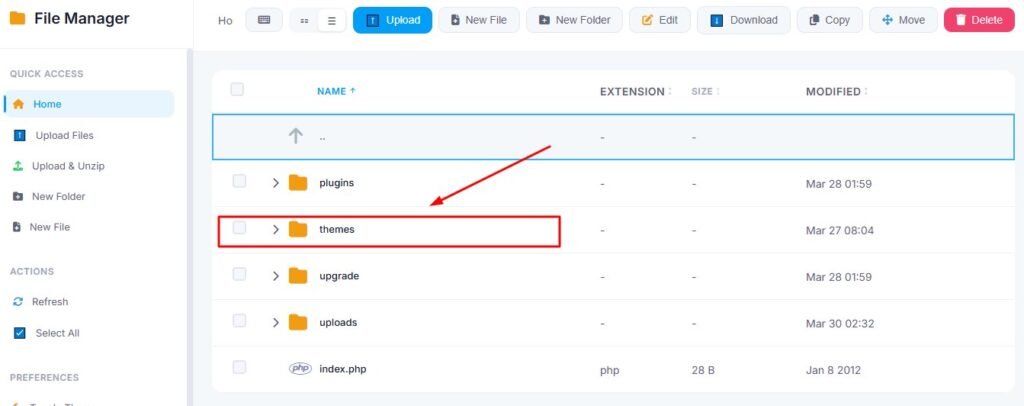
Go back to File Manager in cPanel. Inside wp-content, open the folder called themes. Find the folder with your active theme name. Right-click it and rename it to anything different, like mytheme_old.
WordPress will now look for that theme, find it missing, and automatically fall back to a default theme like Twenty Twenty-Four. Your site should load again and you can access your dashboard.
Why WordPress Falls Back to a Default Theme
WordPress always keeps at least one default theme installed. These are the Twenty series themes such as Twenty Twenty-Four or Twenty Twenty-Three. These themes are lightweight, regularly updated, and officially supported, making them a reliable fallback while you resolve the issue.
How to Reinstall or Switch Your Theme After Recovering Access
Once you are back in the dashboard, go to Appearance and then Themes. You can now install a fresh copy of your theme or switch to a different one permanently. If your original theme keeps causing errors, I strongly recommend choosing a well-supported alternative.
Fix 4 : Turn On WordPress Debug Mode to See the Real Error
Sometimes you cannot tell which plugin or theme is the problem just from guessing. Debug mode shows you the exact file and line of code that is breaking your site.
What Is WP_DEBUG and What Does It Tell You?
WP_DEBUG is a setting inside WordPress that, when turned on, replaces the generic critical error message with the actual technical error. It shows you the exact file path, the line number, and a description of what went wrong. This turns guesswork into a precise fix.
How to Edit wp-config.php in File Manager
Go to cPanel and open File Manager. Inside public_html, look for a file called wp-config.php. Right-click it and select Edit. A text editor will open with the file contents.
The Exact Line to Change in wp-config.php
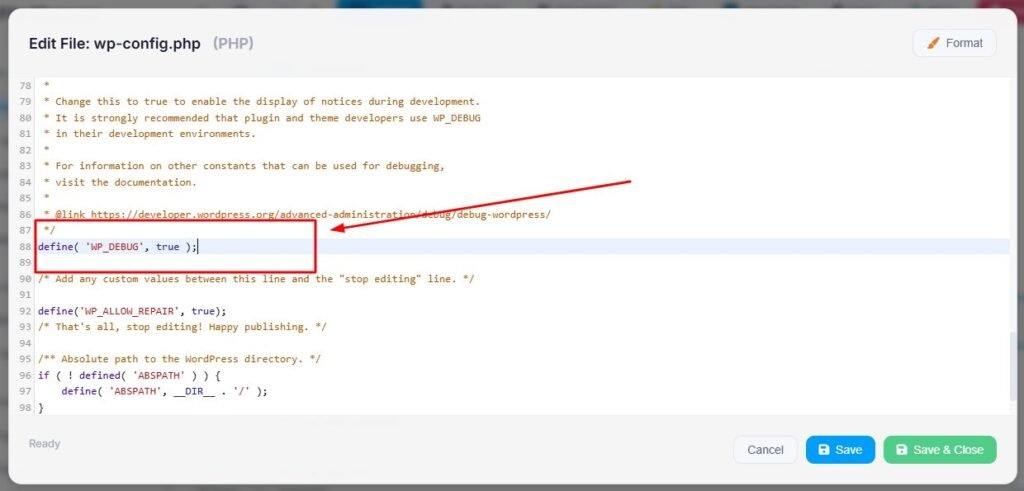
Look for this line in the file:
define( 'WP_DEBUG', false );Change the word false to true so it looks like this:
define( 'WP_DEBUG', true );Save the file. Now refresh your website. Instead of the generic message, you will see the actual error with the exact file path. This tells you exactly which plugin or theme to target.
How to Read the Debug Output
The error will look something like this: Fatal error in wp-content/plugins/plugin-name/file.php on line 42. The part after wp-content/plugins tells you the plugin name. The part after wp-content/themes tells you the theme name. Go directly to that folder and rename it using the method from Fix 2 or Fix 3.
Turn Off Debug Mode After Fixing the Error
Always turn WP_DEBUG back to false after fixing your site. Leaving it enabled on a live site exposes technical details publicly, which creates a security vulnerability
Fix 5 : Check If an Outdated PHP Version Is Behind the Error
This one is often overlooked, especially by beginners. PHP is the programming language that powers WordPress, and using the wrong version causes serious compatibility problems.
What PHP Version Does WordPress Need in 2026?
According to the official WordPress requirements page, WordPress recommends PHP 8.1 or higher as of 2026. You can verify this directly at WordPress.org under their technical requirements section.
How to Check Your Current PHP Version in cPanel
Log into cPanel and look for a tool called MultiPHP Manager or PHP Selector. This shows you which PHP version your site is currently using. If you see anything below 8.0, that may be contributing to your critical error.
How to Update Your PHP Version Safely
Inside MultiPHP Manager, select your domain and choose a newer PHP version from the dropdown. I recommend going to PHP 8.1 first rather than jumping straight to the latest version. Save the change and then refresh your website.
After switching PHP versions, do a thorough check of your site. Test your homepage, any checkout pages, contact forms, and your WordPress dashboard. If anything looks broken, log back into MultiPHP Manager and revert to your previous PHP version. This rollback takes about 30 seconds and puts everything back to where it was.
What to Do If Changing PHP Does Not Fix the Error
If updating PHP did not help, go back and try Fix 2 or Fix 4. PHP version conflicts usually show very specific errors in debug mode, so turning on WP_DEBUG after changing PHP can help you confirm whether PHP was actually the issue.
Fix 6 : Restore Your WordPress Site From a Backup
If none of the above fixes have worked, or if you want the fastest possible recovery, restoring from a backup is your safest option.
When Should You Restore Instead of Keep Troubleshooting?
I recommend restoring from a backup when you have spent more than an hour troubleshooting with no progress, when multiple things seem broken at once, or when the error appeared after a major change like a theme overhaul or significant plugin batch installation.
A clean restore gets you back to a working state instantly. You can then investigate the cause safely without your site being down.
How to Restore a Backup Using Your Hosting Control Panel
Most hosting providers offer one-click backup restoration inside cPanel. Look for a tool called Backup, Backup Wizard, or JetBackup depending on your host. Select the most recent backup from before the error appeared and click restore. Your host will handle the rest.
How to Use a WordPress Backup Plugin to Roll Back
If you have a backup plugin installed such as UpdraftPlus or BlogVault, log into the plugin dashboard and look for the restore option. Select a restore point from before the error and let the plugin restore your files and database automatically.
What If You Have No Backup at All?
If you have no backup, your next best option is to work through Fix 2 (rename the plugins folder) and Fix 4 (enable debug mode) to identify and remove the broken element manually. Once your site is back online, setting up automatic backups should be the very first thing you do. I cover the exact setup process in the prevention section below.
After Fixing the Critical Error : What You Must Do Next
Your site is back up. Take a breath. But before you get back to normal, do these three things.
Update All Plugins and Themes Carefully
Do not rush and update everything at once. Update one plugin at a time and check your site after each update. This way if something breaks again, you know exactly which update caused it. Avoid updating multiple things simultaneously, which is what often caused this problem in the first place.
Test Your Site Thoroughly After the Fix
Check your homepage. Check a few posts and pages. Test any forms or checkout pages if you have them. Click around as a regular visitor would. Make sure comments load, images display correctly, and nothing looks broken. A quick five minute walkthrough can save you from finding out later that something is still wrong.
Set Up WordPress Error Notifications for the Future
Go to your WordPress dashboard settings and confirm your admin email is correct. WordPress will try to send you a recovery email next time something breaks. You can also install a monitoring plugin or use a service like UptimeRobot, which is free and alerts you the moment your site goes down.
How to Stop This WordPress Critical Error From Happening Again
Prevention is always better than panic. Here is what I personally do to keep my WordPress sites stable.
Always Test Plugin Updates on a Staging Site First
A staging site is a private copy of your website where you can test changes before pushing them to your live site. Most managed hosting providers offer staging environments for free. Get into the habit of updating plugins on staging first and only moving those updates to your live site after confirming everything works.
Keep a Regular Backup Schedule Starting Today
Set up automatic daily backups if your site changes frequently, or weekly backups if you post less often. UpdraftPlus is free and reliable. Configure it to save backups to Google Drive or Dropbox so they are stored offsite. If your site ever crashes completely, your backup is safe in the cloud.
Check Plugin Compatibility Before You Install Anything
Before installing any plugin, check when it was last updated. A plugin that has not been updated in over a year may not be compatible with the current version of WordPress. Also check the plugin’s rating and read through recent reviews. If multiple recent reviews mention site crashes or critical errors, stay away from that plugin.
Avoid Installing Too Many Plugins
More plugins means more chances for conflict. I try to keep my plugin count under 15 on any site. Before adding a new plugin, ask yourself whether it is truly necessary or whether an existing plugin already handles that function. Fewer plugins means a faster, more stable, and more secure website.
Frequently Asked Questions About WordPress Critical Error
Can a WordPress Critical Error Delete My Posts or Pages?
No. This error affects how WordPress runs, not what is stored in your database. Your posts, pages, comments, and media are stored separately in your MySQL database and are not affected by this type of error. Once you fix the error, everything should appear exactly as it was.
Why Can I Not Access My WordPress Dashboard After This Error?
When a plugin or theme causes a fatal error, WordPress sometimes cannot load the dashboard either. This happens because the same broken code runs on both the frontend and the backend. That is why the cPanel rename method works so well. It bypasses WordPress entirely and fixes the problem at the file level.
Does Renaming the Plugins Folder Delete My Plugins?
No. Renaming the folder only makes WordPress unable to find it temporarily. Your plugins and all their settings remain completely intact inside the renamed folder. When you rename it back to plugins, everything returns to its previous state.
How Do I Fix a WordPress Critical Error If I Have No cPanel Access?
If your host does not offer cPanel, check whether they offer an alternative file manager through their own control panel. You can also connect using an FTP client like FileZilla with the FTP credentials provided by your host. The process is the same — find the plugins folder and rename it.
What Is the Difference Between a Critical Error and the White Screen of Death?
The White Screen of Death is an older term for what is now the WordPress critical error message. In older versions of WordPress, the site would simply go blank with no explanation. Since WordPress 5.2, that blank screen was replaced with the critical error message and the recovery email system. They are essentially the same underlying problem with a better response system in modern WordPress.
Can My Hosting Provider Fix This Error for Me?
Yes, most hosting support teams are familiar with this error and can help. If you are completely stuck, open a support ticket with your host, explain when the error started, and ask them to help you identify the broken plugin or theme. Many hosts can access your files directly and rename the plugins folder for you.
How Long Does It Take to Fix a WordPress Critical Error?
In most cases, using the methods in this guide, you can have your site back online within 10 to 30 minutes. The recovery mode method takes about two minutes. The plugins rename method takes about five to ten minutes. Debug mode takes a little longer if you need to investigate the output but is still very manageable for a non-developer.Debug mode takes a little longer if you need to investigate the output but is still very manageable for a non-developer.
You Can Fix This WordPress Error Yourself
I have been managing WordPress sites since 2015 across niches including blogging, eCommerce, and client work. This error has shown up on almost every site I have touched at some point.
When I first encountered this error years ago, I panicked. I thought my site was gone. I thought I had broken something irreparably. But I fixed it, and now I barely worry when I see it because I know exactly what to do.
The “there has been a critical error on this website” WordPress message looks scary, but it is one of the most solvable problems in all of WordPress. You now have six proven methods to work through, a clear order to follow, and the knowledge to prevent this from ever happening again.
Start with your recovery email. If that did not come, rename your plugins folder. If that does not fix it, try the theme folder. Turn on debug mode if you need to pinpoint the exact file. Check your PHP version. Restore from backup if all else fails.
I wrote this guide because when I first searched for help with this error, most articles were either too technical or too vague. I wanted to create one resource that any site owner could follow without needing a developer. If you got your site back using this guide, that is exactly what it was designed for.
Take it one step at a time and your site will be back up before you know it.