If you have ever visited a WordPress site and clicked a small button that reveals hidden information below it, that is a drop down info plugin doing its job. I have used these plugins on multiple sites and honestly they are one of the most underrated tools in WordPress. They keep pages clean, organized, and easy to navigate without any complicated setup.
What Is a Drop Down Info Plugin for WordPress?
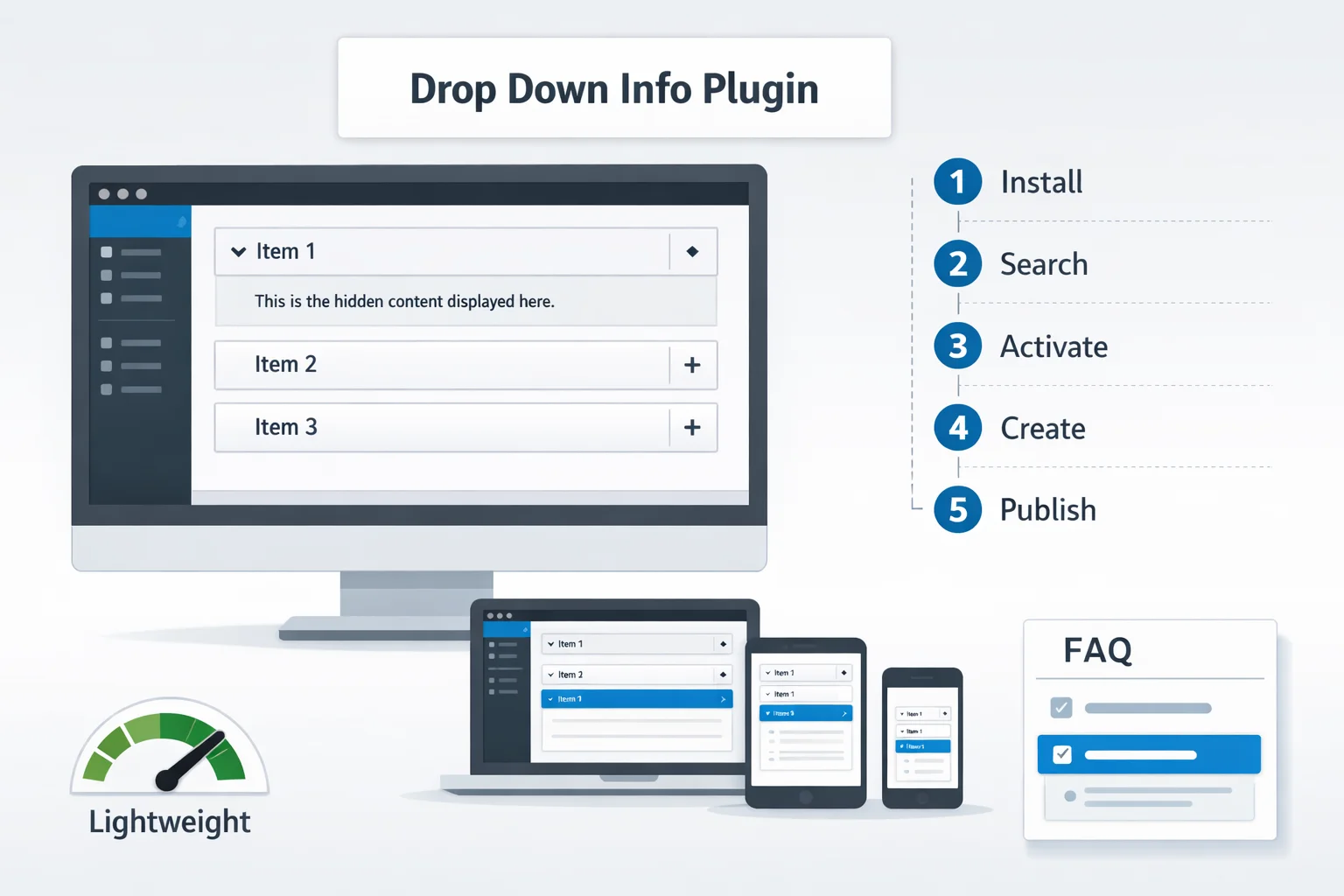
A drop down info plugin for WordPress is a tool that lets you hide and reveal content with a simple click. Instead of showing all your text at once and overwhelming your visitor, you place information inside a collapsible section. The visitor clicks the title and the content expands below it.
Most people know this feature as an accordion, a toggle, or a collapsible info box. All of these work on the same basic idea. You show a short label and hide the full details until the reader wants to see them.
I use drop down plugins mainly for FAQ sections, long product descriptions, and tutorial steps. They work beautifully for any page where you have a lot of information to share but you do not want to dump it all on the screen at once.
The good news is that most of the best options are completely free and work with any WordPress theme.
Why Do You Need a Drop Down Info Plugin in WordPress?
Like many WordPress site owners, I originally skipped dropdown plugins and simply laid out all my content in long scrolling pages. After adding collapsible sections and watching my bounce rate drop noticeably, I realized how much that decision had been costing me. Once I added collapsible sections to my pages the difference in how people engaged with the content was noticeable almost immediately.
Think about a services page with detailed descriptions for ten different offerings. Without dropdowns it looks like an endless scroll. With dropdowns it looks like a neat list that the reader can explore at their own pace.
Here is why I think every WordPress site owner should consider using one.
Your Page Looks Cluttered Without Dropdown Sections
When you put every piece of information on a page without any structure it becomes visually overwhelming. Readers see a wall of text and their first instinct is to leave. I have experienced this on my own site and the bounce rate showed it clearly.
Drop down sections solve this by giving your page breathing room. The page looks clean and organized. Important information is still there but it stays hidden until the reader specifically wants it. This makes the whole experience feel much less stressful for visitors.
Think about a services page with detailed descriptions for ten different offerings. Without dropdowns it looks like an endless scroll. With dropdowns it looks like a neat list that the reader can explore at their own pace.
Visitors Leave When They Cannot Find Info Quickly
People who visit your site are usually looking for one specific answer. If they have to read through paragraphs of content just to find what they need they will close the tab and try a different site. I have seen this happen with my own analytics.
A drop down info section solves this perfectly. You label each section clearly so the reader can scan the labels and click only what they need. It saves their time and makes your site feel respectful of their attention.
After adding a dropdown FAQ section to one of my product pages, average time on page increased meaningfully. Visitors were clicking through individual questions rather than leaving the page, which told me the content was finally working the way it should.
One of my favorite things about modern WordPress dropdown plugins is that you do not need to write a single line of code. I am not a developer and I was still able to set up a fully functional collapsible info section in under ten minutes.
You install the plugin, use a simple interface to create your sections, give each one a title, add your content, and you are done. No CSS knowledge required. No JavaScript to write. No theme files to edit. However, if you later want to add custom CSS animations to enhance the dropdown effects, that option is available too.
This is exactly why these plugins are so popular with bloggers, small business owners, and anyone who manages their own WordPress site without technical help.
3 Ways to Add Drop Down Info Sections in WordPress
There is more than one way to add collapsible dropdown sections to your WordPress site. The right method depends on your comfort level and what your theme supports. Here is a quick breakdown of all three approaches.
Method 1 : Using a WordPress Plugin (Easiest)
This is the method I always recommend to beginners and honestly it is what I use myself most of the time. You install a free accordion or toggle plugin from the WordPress plugin directory, use its built-in editor to create your dropdown sections, and add them to any page or post using a shortcode or block.
The whole process takes less than ten minutes and you do not need any technical knowledge. I will walk you through exactly how to do this in the installation section below.
Method 2 : Using the Block Editor / Site Editor
If you are using a modern WordPress block theme you can sometimes add basic accordion or submenu behavior directly inside the Site Editor without installing an extra plugin. You go to Appearance and then Editor, add a Navigation block, and nest items under parent items to create expandable sections.
This method works well for simple navigation dropdowns. However for full collapsible info boxes with rich content inside I still find a dedicated plugin gives you much more control and flexibility.
Method 3 : Using Custom CSS and JavaScript (Advanced)
This is the manual approach for developers or people who are comfortable editing code. You build the dropdown structure in HTML, style it with CSS, and add the toggle behavior with JavaScript. You can do all of this using a child theme, a custom HTML block in the editor, or by adding custom code directly to your theme files.
I only recommend this if you have coding experience and a specific design requirement that no plugin can meet. You will need access to your site files via SFTP or your hosting file manager to upload and edit the necessary files. For most WordPress users the plugin method is faster, easier, and just as effective.
Best Free Drop Down Info Plugins for WordPress (2025)
I tested each of these plugins personally on a live WordPress site. My criteria were simple. The plugin had to be free, easy to use, well maintained, and compatible with popular themes. Here are my top seven picks.
1. Accordion by Pick Plugins : Best Overall Free Option
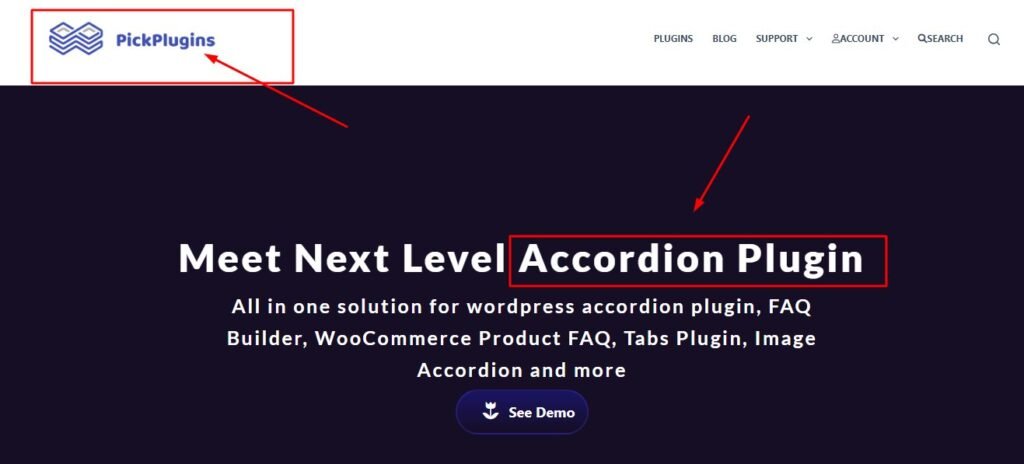
items with custom color options and shortcode support
inside a WordPress page on desktop and mobile view.
Accordion by Pick Plugins is my default choice whenever I need a dependable accordion solution, whether I am working on a blog, a service site, or a WooCommerce store. The free version gives you a clean accordion layout, smooth animations, and a simple short code system that works everywhere including classic editor, Gutenberg, and page builders.
What I like most is how easy it is to customize the look without touching any code. You can change colors, font sizes, border styles, and icon types all from within the plugin settings. It is responsive out of the box so it looks great on phones and tablets.
Best for: Anyone who wants a solid all-around accordion plugin that just works.
Free features include:
- Unlimited accordion items
- Custom color and style options
- Shortcode support for any page or post
- Mobile responsive design
2. Easy Accordion Free : Best for FAQ Pages
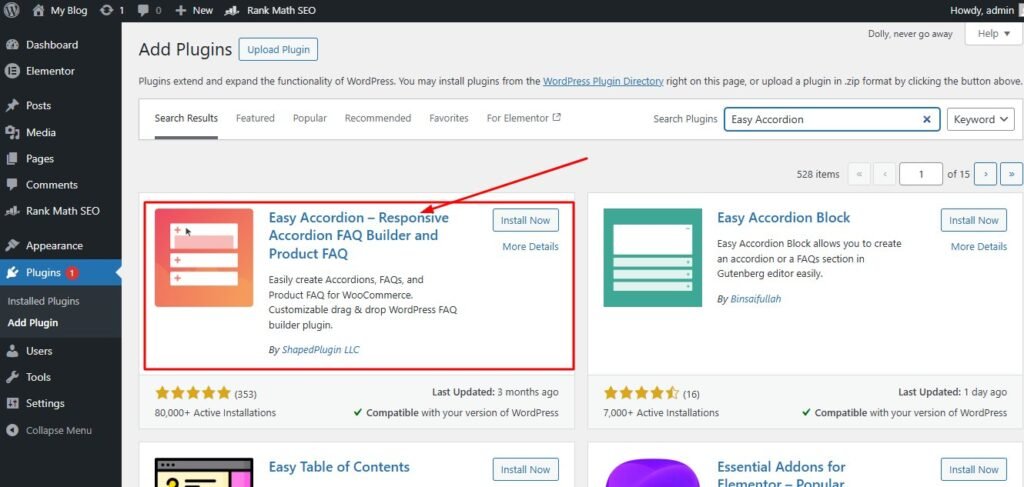
with drag and drop ordering, smooth open close animation,
and clean Google readable content layout inside a
WordPress page built with Gutenberg block editor.
If you are building a FAQ page this is the one I would point you to first. Easy Accordion is built specifically with FAQ sections in mind and the drag-and-drop interface makes it incredibly simple to organize your questions and answers.
The plugin also supports schema markup in the pro version but even the free version produces clean structured content that Google can read easily. I used this on a client site for a services FAQ and the page started appearing in People Also Ask results within a few weeks.
Best for: FAQ pages and structured question-and-answer sections.
Free features include:
- Drag-and-drop item ordering
- Multiple accordion styles
- Gutenberg block included
- Smooth open-close animation
3. WP Collapse-O-Matic — Best Lightweight Option
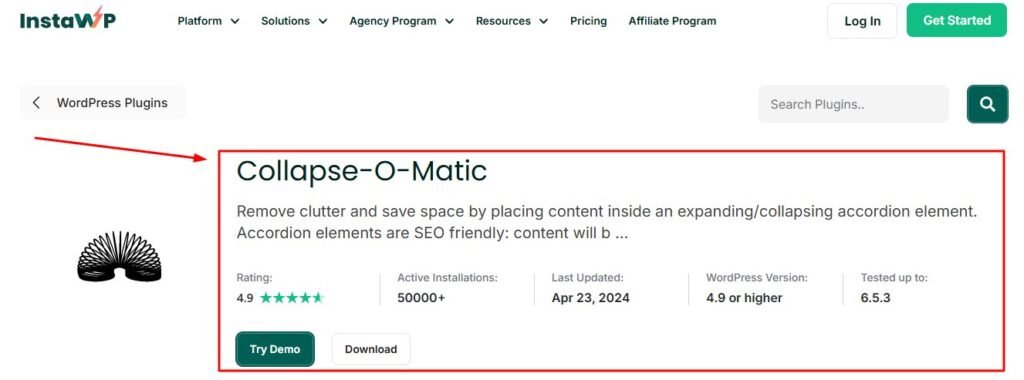
collapsible toggle section wrapping multiple content types
including text, images, and video on a speed sensitive
WordPress landing page with zero measurable impact on
Core Web Vitals and minimal code output.
If page speed is your top priority this is the plugin for you. WP Collapse-O-Matic is one of the lightest dropdown plugins available for WordPress. It adds almost no overhead to your page load and uses a simple shortcode to wrap any content in a collapsible toggle.
I tested this on a speed-sensitive landing page and it had zero measurable impact on my Core Web Vitals scores. The plugin is straightforward with no fancy interface but it does exactly what it promises.
Best for: Sites where page speed and minimal code are critical.
Free features include:
- Ultra-lightweight with no extra scripts
- Shortcode wraps any content type
- Works with images, videos, and text
- Developer-friendly with filter hooks
4. Arconix FAQ : Best for Simple FAQ Dropdowns

through a custom post type system with group based
organization and shortcode placement on a WordPress
support or knowledge base page.
Arconix FAQ is a dedicated FAQ plugin that creates a custom post type for your questions and answers. This means your FAQ items are stored separately from your regular posts which makes managing a large FAQ library much easier.
I like this plugin for sites that have a growing knowledge base or support section. You can organize questions by groups and display them anywhere using a shortcode. The design is simple and clean without being boring.
Best for: Sites with a large FAQ library that needs ongoing management.
Free features include:
- Custom post type for FAQ items
- Group-based organization
- Shortcode display anywhere on site
- Clean accessible output
5. Ultimate Blocks Accordion : Best for Block Editor Users
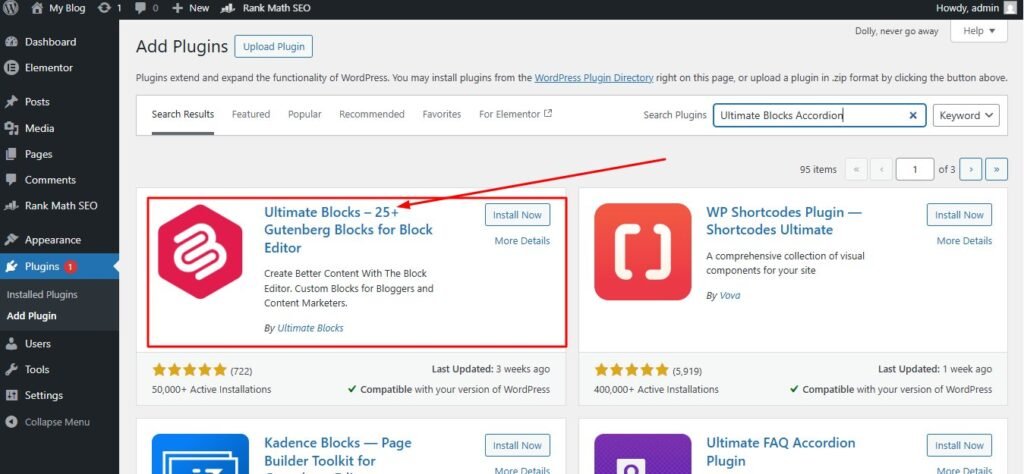
Gutenberg accordion block inserted directly inside the
WordPress block editor with full style controls, no
shortcode required, and natural workflow integration
for block editor users.
If you build your pages entirely inside the Gutenberg block editor then Ultimate Blocks is a fantastic choice. The plugin adds an accordion block directly to your block editor so you can build and manage your dropdown sections right where you are already working.
No shortcodes needed. No switching between screens. You just insert the accordion block, type your title and content, and it works. I use this plugin on Gutenberg-first sites and the workflow feels completely natural.
Best for: WordPress users who build everything inside the Gutenberg block editor.
Free features include:
- Native Gutenberg accordion block
- No shortcode required
- Full block editor integration
- Style controls inside the block settings
6. Qi Blocks Accordion : Best for Gutenberg Sites
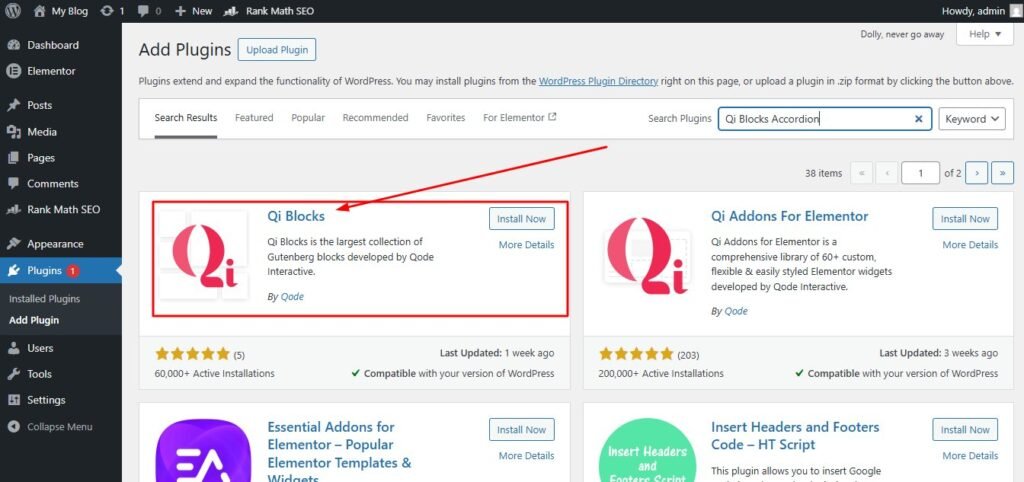
modern accordion section with smooth animations and
full free style controls inside a Gutenberg block
theme, showing premium quality design without any
paid upgrade required.
Qi Blocks is a full Gutenberg block library and the accordion block inside it is one of the best free options available for block-based WordPress themes. The accordion design is modern, the animations are smooth, and you get style controls that most other free plugins put behind a paywall.
I discovered this plugin while looking for a stylish accordion that did not require a premium upgrade. The free version exceeded my expectations. It works especially well with block themes like Twenty Twenty-Four and Kadence.
Best for: Gutenberg sites that want a polished modern accordion design for free.
Free features include:
- Beautiful modern accordion design
- Full style controls in free version
- Works seamlessly with block themes
- Part of a larger block library for added value
7. Toggle Content Box : Best for Show/Hide Info Boxes
Sometimes you do not need a full accordion. You just need a simple toggle that shows or hides a block of content when someone clicks a button. Toggle Content Box does exactly that and nothing more.
This plugin is perfect for showing extra details on a product page, revealing terms and conditions, or adding expandable notes inside a blog post. It is minimal, fast, and extremely easy to use.
Best for: Simple show-and-hide content boxes without full accordion styling.
Free features include:
- Simple toggle show and hide behavior
- Works with any content type
- Minimal design that adapts to your theme
- Shortcode-based and easy to place anywhere
How to Install a Drop Down Info Plugin in WordPress
Installing a drop down info plugin in WordPress is a straightforward process. I will use Easy Accordion Free as the example here but the steps are the same for any plugin in this list.
Step 1 : Go to Plugins and Click Add New
Log in to your WordPress dashboard. In the left sidebar find the Plugins menu and click on it. Then click the Add New button at the top of the page. This takes you to the WordPress plugin directory where you can search for and install any free plugin. Advanced users can also install plugins using WP-CLI if they prefer working from the command line.
Step 2 : Search for Your Chosen Dropdown Plugin
In the search box in the top right corner type the name of the plugin you want to install. For example type Easy Accordion and press enter. You will see the plugin appear in the results. Make sure you are clicking on the correct one by checking the plugin name and the developer name.
Step 3 : Install and Activate the Plugin
Click the Install Now button next to the plugin. WordPress will download and install it automatically. Once the installation finishes the button will change to Activate. Click Activate and the plugin is now live on your site.
You will usually see a new menu item appear in your WordPress dashboard sidebar for the plugin you just installed. If you encounter any critical errors during activation, you can troubleshoot the issue using standard WordPress error-fixing methods.
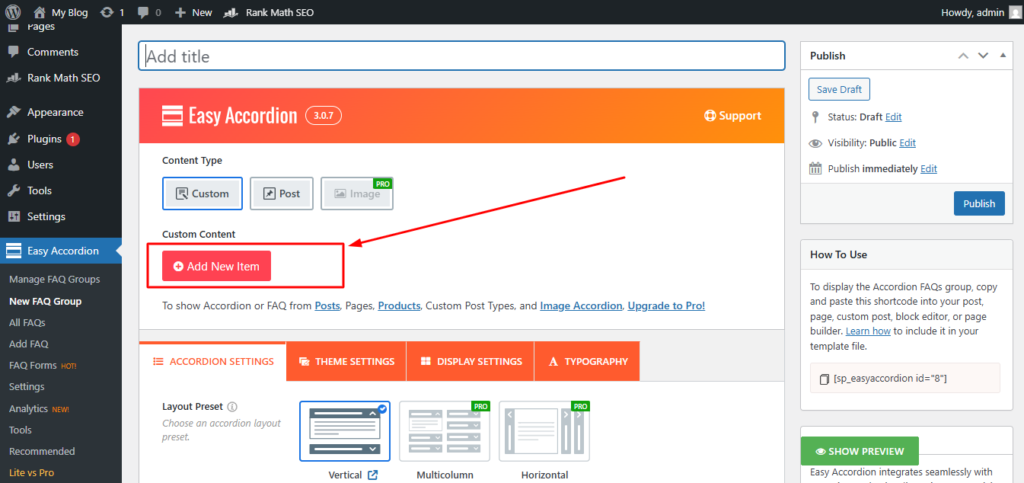
Step 4 : Create Your First Drop Down Info Section
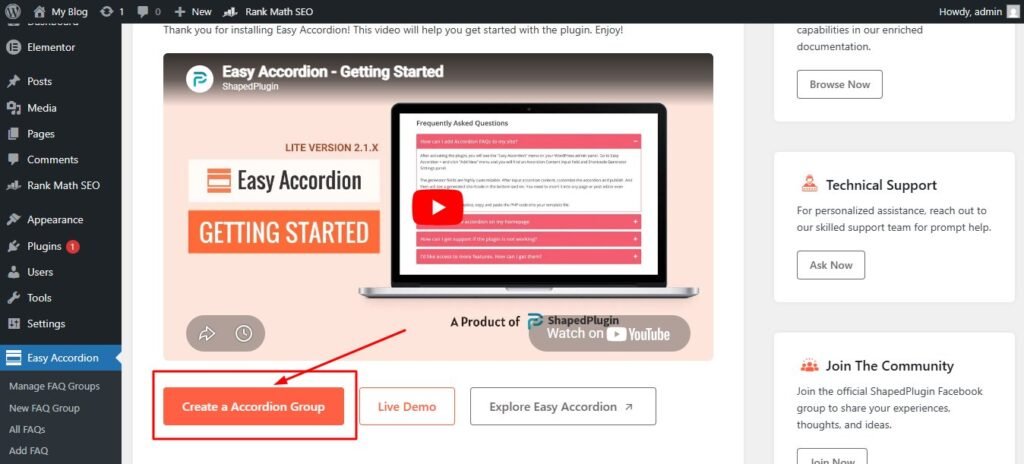
the accordion editor with a new item title and content
added, shortcode copied and pasted into a WordPress page,
and the same process shown inside the Gutenberg block
editor for block based plugin users.
Open the plugin settings from your dashboard. Most accordion plugins have a Create New button or a similar option. Click it and you will see a simple editor where you can add your accordion items.
Give your first item a title. This is the text the visitor will see before they click. Then add the content you want to show when they click. Repeat this for as many items as you need. When you are done save your accordion and copy the shortcode or block it generates.
Paste the shortcode into any page or post where you want the accordion to appear. If you are using a Gutenberg block plugin just insert the accordion block directly inside the editor.
Step 5 : Publish and Preview on Your Site
showing a published page with live accordion preview
open in a new browser tab, each accordion item tested
open and closed correctly, and mobile responsive view
confirmed on a smartphone screen alongside the desktop
preview.
Click publish or update on your page and then open the page in a new browser tab to preview it. Test each accordion item by clicking on it to make sure it opens and closes correctly. Also check how it looks on a mobile device by resizing your browser window or using your phone.
If everything looks good you are done. Your drop down info section is live and working.
When Should You Use a Drop Down Info Plugin?
A dropdown plugin is not something you need on every single page. But there are specific situations where using one makes a huge difference to the reader experience. Here are the most common use cases I rely on.
Adding a Drop Down FAQ Section to Your Site
A FAQ page is the most popular use case for accordion plugins and for good reason. Instead of listing every question and answer in a long scrollable block you display just the questions. The reader clicks on the one they care about and reads the answer. Clean, fast, and easy.
I have seen FAQ pages reduce the number of support emails a site owner receives because visitors can now find answers on their own. That alone makes the plugin worth installing.
Hiding Long Product Descriptions Behind a Toggle
E-commerce and service pages often have a lot of detail to share but showing it all at once can hurt conversions. When a potential buyer sees a page filled with text they sometimes feel overwhelmed and leave without making a decision.
By putting additional details like technical specifications, care instructions, or extended descriptions inside a toggle you keep the main page clean while still making all the information available. The visitor clicks to read more only if they want to.
Creating Expandable Info Boxes for Service Pages
If you offer multiple services on one page an accordion is a great way to present them. Each service gets a title row that expands to show the full description, pricing notes, or process details. The page stays scannable while still providing depth.
I used this approach on a consulting services page and it helped visitors quickly identify the service they needed without reading through content that was not relevant to them.
Organizing Course Content With Collapsible Sections
If you run an online course or educational blog collapsible sections help you organize lesson outlines, module descriptions, and resource lists in a way that feels structured and easy to navigate. Students can jump to the specific section they need without scrolling through everything above it.
This approach also works well for long tutorial posts where you want to give readers a clear overview of all the steps before they commit to reading everything.
Which Drop Down Info Plugin Should You Choose?
With seven solid options on the list the natural question is which one is right for you. Here is a simple breakdown based on your specific situation.
Choose This Plugin If You Are a Complete Beginner
Go with Easy Accordion Free. It has the most beginner-friendly interface of the group. The drag-and-drop editor makes it easy to create and reorder items without any confusion. The documentation is clear and the plugin has been around long enough to be very stable and well supported.
You will have your first dropdown section working in under ten minutes even if you have never installed a plugin before.
Choose This Plugin If You Need an FAQ Layout
Easy Accordion Free and Arconix FAQ are both strong here. If you want a pure FAQ management system with custom post types and group organization go with Arconix FAQ. If you want a visually attractive FAQ accordion with style options go with Easy Accordion Free.
Both are free and both produce clean output that search engines can read and understand well.
Choose This Plugin If You Use the Block Editor
If you live inside the Gutenberg block editor choose either Ultimate Blocks Accordion or Qi Blocks Accordion. Both integrate directly into the block editor so you never need to deal with shortcodes. Qi Blocks gives you slightly more style control in the free version while Ultimate Blocks has a broader feature set overall.
Either one will feel completely natural if you are already used to building pages with blocks.
Choose This Plugin If You Want Lightweight Speed
WP Collapse-O-Matic is your best bet here. It adds the smallest amount of code to your pages and has been specifically built with performance in mind. If you run a site where every millisecond of load time matters this is the one to install.
Accordion by PickPlugins is also relatively lightweight compared to heavier page builder solutions and is worth considering if you want a middle ground between speed and styling options.
Best Practices for Using Drop Down Info Plugins
Installing the plugin is just the first step. How you use it matters just as much. Here are the practices I follow every time I add dropdown sections to a WordPress site.
Keep Drop Down Labels Short and Descriptive
The label is the only part of your accordion that is always visible. If it is too long or unclear visitors will not know whether to click it. Keep each label to ten words or fewer and make sure it clearly communicates what information is inside.
Think of the label as a mini headline. It should make the reader curious enough to click but also clear enough that they know exactly what they will get when they do.
Do Not Hide Important Content Google Needs to Index
Google can read content inside accordion and toggle sections. However some SEOs debate how much weight hidden content receives compared to visible content. To stay safe I make sure that my most important primary content is always visible on the page.
Use dropdown sections for supporting details, extra explanations, and secondary information. Keep your main headings, key paragraphs, and core value proposition visible without any clicks required.
Make Sure Your Dropdown Works on Mobile Devices
More than half of all web traffic comes from mobile devices so testing your accordion on a phone is not optional. After setting up any dropdown plugin I always open the page on my phone and click through every single accordion item.
Check that the touch targets are large enough to tap easily. Make sure the expanded content does not overflow the screen. Verify that the animation does not feel laggy or broken on a smaller device.
Test Page Speed After Installing Any Dropdown Plugin
Every plugin you add to WordPress loads some amount of additional CSS and JavaScript. Before and after installing a dropdown plugin run a speed test using a free tool like Google PageSpeed Insights. Compare the scores and check if the plugin has caused any meaningful slowdown.
Most good accordion plugins are well optimized and will not cause noticeable issues. But it is always worth checking especially if your site already has many plugins installed, as part of your overall WordPress site maintenance and security routine.
Frequently Asked Questions
What is the best free drop down plugin for WordPress?
Based on hands-on testing, Accordion by PickPlugins offers the best overall combination of ease of use, design flexibility, and theme compatibility. For FAQ-specific pages, Easy Accordion Free is the stronger choice.
Can I add a dropdown info box without coding?
Yes absolutely. Every plugin on this list lets you create fully functional dropdown info sections without writing any code. You use a simple editor inside your WordPress dashboard to add titles and content. The plugin handles everything else automatically.
Will a dropdown plugin slow down my WordPress site?
A well-coded dropdown plugin adds a very small amount of CSS and JavaScript to your pages. For most sites this has no noticeable impact on speed. WP Collapse-O-Matic is the lightest option if speed is a concern. Always run a speed test before and after installation to check your specific situation.
What is the difference between an accordion and a dropdown?
An accordion is a vertical stack of collapsible sections where clicking one title expands that section to reveal content. A dropdown typically refers to a menu or list that appears below a button when clicked. In WordPress content creation the terms are often used interchangeably but accordion plugins are specifically designed for showing and hiding blocks of text and media rather than navigation links.
Do drop down plugins work with all WordPress themes?
Most accordion and toggle plugins are designed to work with any WordPress theme since they output standard HTML that inherits the theme’s basic styles. However some highly customized themes can occasionally conflict with plugin styles. I always recommend testing on your specific theme and checking the plugin’s support forum if you encounter any visual issues.
How do I show and hide content in WordPress for free?
The easiest free method is to install a plugin like Easy Accordion Free or Accordion by PickPlugins. Both are available for free in the WordPress plugin directory. After installation you create your collapsible sections inside the plugin editor and paste the shortcode into any page or post. The content will be hidden by default and revealed when a visitor clicks the label.
Final Thoughts on Choosing the Right Drop Down Plugin
Every plugin in this list has earned its place through real testing on live WordPress sites. The decision really comes down to your workflow. Beginners should start with Easy Accordion Free and have something working within ten minutes.
Block editor users will feel most at home with Qi Blocks or Ultimate Blocks. And if raw performance matters most, WP Collapse-O-Matic remains unbeaten for lightweight output. Pick the one that matches your setup, install it, and your pages will immediately become easier to navigate for every visitor who lands on them.
If you are just getting started and want something simple and reliable go with Easy Accordion Free. If you are a Gutenberg user install Qi Blocks or Ultimate Blocks. If page speed is your priority WP Collapse-O-Matic is the one to pick.
What I love most about all of these options is that they are completely free. You do not need to spend anything to add clean professional looking dropdown info sections to your WordPress site. Install one, spend ten minutes setting it up, and your pages will immediately feel more organized and easier to navigate.
If you found this guide helpful take a look at my other WordPress plugin reviews where I cover more free tools that can improve your site without adding unnecessary complexity or cost.