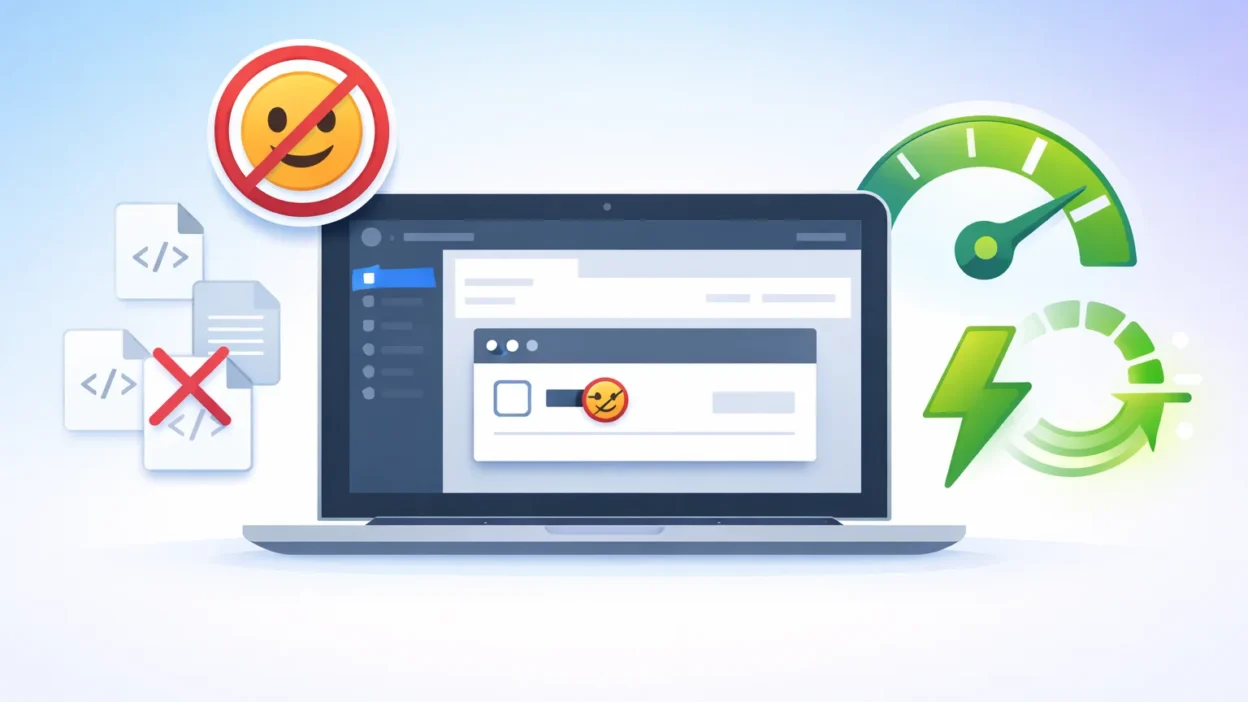
You ran a speed test and saw window._wpemojiSettings sitting in your page source. Or PageSpeed Insights handed you a ‘Remove unused JavaScript’ warning pointing straight at wp-emoji-release.min.js. Either way, you want to disable _wpemojiSettings and get it off your pages for good.
I have cleaned this up on dozens of WordPress sites. The fix takes five minutes, and nothing breaks when you do it right. This guide covers what the script actually is, whether turning it off affects your emojis, and three different methods depending on how you prefer to work.
What Is _wpemojiSettings and Why Is WordPress Adding It to Your Pages?
The window._wpemojiSettings object is a JavaScript configuration block that WordPress automatically injects into the <head> section of every page on your site whether those pages contain emojis or not.
WordPress added emoji support in version 4.2. Back then, older browsers could not render emoji characters consistently, so WordPress built an emoji detection script that converts plain text characters into image files to keep emoji display uniform across browsers. That script — wp-emoji-release.min.js — loads alongside the _wpemojiSettings object on every page request.
The problem is that WordPress never added a dashboard toggle to turn this off. It runs by default on every install, adding an extra JavaScript file, an extra CSS file, and multiple HTTP requests to every page load including pages that have never had a single emoji in their content.
Is the WordPress Emoji Script Actually Slowing Down Your Site?
Honestly, yes — but the impact depends on what is already loading on your pages. When I tested this using GTmetrix on a live site, removing the emoji script dropped HTTP requests from 14 down to 10 and saved about 7 KB in total page weight.
Seven kilobytes will not rescue a slow server, but those four extra requests are the real cost. Every HTTP request adds a round-trip between the browser and your server. On a page that is already making a dozen requests, the WordPress emoji performance impact compounds — especially for visitors on slower mobile connections or shared hosting.
The PageSpeed Insights Connection Most Articles Miss
If you ended up here from Google PageSpeed Insights, you probably saw a ‘Remove unused JavaScript’ recommendation pointing directly at wp-emoji-release.min.js.
PageSpeed flags this file because it loads on every page regardless of whether your site actually uses emojis. From Google’s perspective, a script that is not doing anything useful is dead weight hurting your Core Web Vitals scores.
Removing it is one of the cleanest PageSpeed fixes available it is fully reversible, requires no theme edits, and resolves the flag completely on sites that do not rely on the WordPress emoji system.
Will Disabling This Actually Break Emojis on Your Site?
This is the question I get more than any other, and the answer is straightforwardly no.
Chrome, Firefox, Safari, and Edge all render emojis natively. Your visitors do not need WordPress’s script for emojis to appear correctly on their screens. The wp-emoji-release.min.js file was built for an older generation of browsers that very few people use anymore.
The only edge case is someone visiting your site on an ancient browser — Internet Explorer 10 or earlier, for example. That audience is a rounding error in most analytics accounts today. For virtually every WordPress site, removing this script makes no visible difference to how emojis display. You can do this confidently.
Method 1 : Disable _wpemojiSettings with a Free Plugin (Best for Beginners)
If you want a no-code solution, this is the approach I start with on client sites. Both plugins I recommend activate instantly with zero configuration, and if something ever looks off, deactivating takes one click.
Option A : Disable Emojis (GDPR Friendly) Plugin
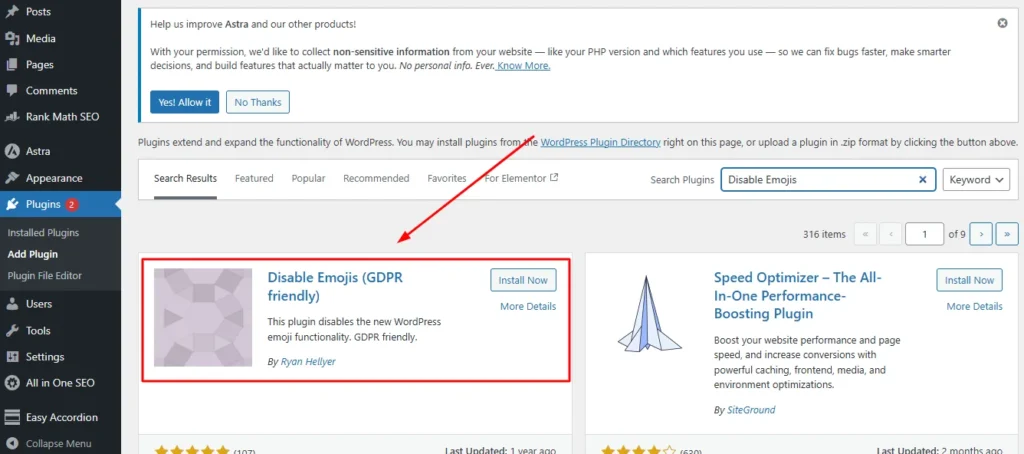
Search for ‘Disable Emojis GDPR Friendly’ in your WordPress plugin directory, install it, and activate it. No settings page opens, no configuration needed. It immediately removes the emoji script from your front-end, admin area, and RSS feeds.
The GDPR label is worth understanding if your audience includes European visitors. WordPress’s default emoji feature pulls assets from WordPress.org CDN servers, creating a third-party connection on every page load. This plugin cuts that connection, which matters for cookie consent and data transfer compliance.
Option B : Really Disable Emojis (More Frequently Updated)
I tend to recommend this one to site owners who think about long-term security hygiene. Plugin update frequency matters more than people realize — a plugin sitting on version 1.0 from four years ago is a liability waiting to surface. ‘Really Disable Emojis’ gets updated more consistently than most in this category, which is why it sits at the top of my list when a client asks me to pick one.
If you already have the GDPR-friendly version installed and it is working, there is no need to switch. Both remove the same scripts. Update frequency is the differentiator, not functionality.
Method 2 : Remove the Emoji Script via functions.php (No Plugin Needed)
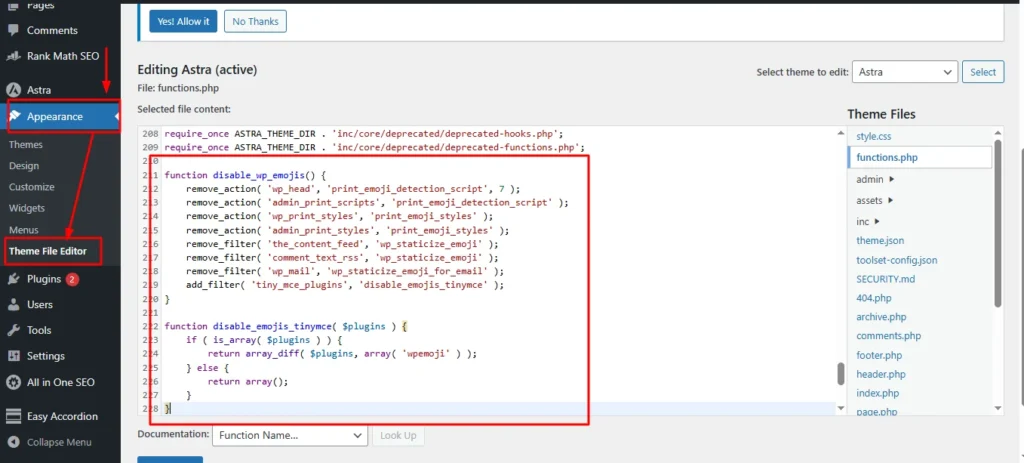
If keeping your plugin count low is a priority, you can WordPress functions.php disable emojis approach using a small code snippet — no plugin installation required.
One critical warning before I share the code: never paste this directly into your active theme’s functions.php file. The moment you update or switch themes, every direct edit to that file disappears. Instead, use a free code management plugin like WP Code or Code Snippets. Both store your snippets in the WordPress database, completely independent of your theme.
Here is the code snippet:
function disable_wp_emojis() {
    remove_action( 'wp_head', 'print_emoji_detection_script', 7 );
    remove_action( 'admin_print_scripts', 'print_emoji_detection_script' );
    remove_action( 'wp_print_styles', 'print_emoji_styles' );
    remove_action( 'admin_print_styles', 'print_emoji_styles' );
    remove_filter( 'the_content_feed', 'wp_staticize_emoji' );
    remove_filter( 'comment_text_rss', 'wp_staticize_emoji' );
    remove_filter( 'wp_mail', 'wp_staticize_emoji_for_email' );
    add_filter( 'tiny_mce_plugins', 'disable_emojis_tinymce' );
}

function disable_emojis_tinymce( $plugins ) {
    if ( is_array( $plugins ) ) {
        return array_diff( $plugins, array( 'wpemoji' ) );
    } else {
        return array();
    }
}

add_action( 'init', 'disable_wp_emojis' );
Why You Should Use WP Code Instead of Editing functions.php Directly
Beyond the theme-update risk, there is another reason I use WP Code specifically rather than the basic Code Snippets plugin: WP Code has a built-in snippet library with pre-tested code, error detection that prevents broken snippets from crashing your site, and the option to enable or disable individual snippets without deleting them. For a fix like this, that last feature is useful — if something ever looks off after removing the emoji script, you can disable the snippet in one click and test without touching any files.
What Each Line of the Code Actually Does
Here is what each part of the snippet is actually doing:
The two remove_action calls using print_emoji_detection_script pull the wp-emoji-release.min.js file from both your public-facing pages (via wp_head) and your WordPress admin area (via admin_print_scripts).
The print_emoji_styles lines remove the emoji-specific CSS file that WordPress loads alongside the JavaScript — both front-end and admin versions.
The remove_filter calls on wp_staticize_emoji cover RSS feeds and outgoing WordPress emails, where the system also tries to swap emoji characters for static image files.
The tiny_mce_plugins filter strips the wpemoji plugin from the TinyMCE classic editor, removing the emoji picker button from the post editing toolbar.
Finally, add_action( ‘init’, ‘disable_wp_emojis’ ) tells WordPress to run the entire function early in the page load sequence, before any emoji resources have a chance to get queued.
Already Have a Performance Plugin? Use It Instead of Installing Another One
Before you install anything new, check what you already have. If you are running a performance or caching plugin, there is a very good chance it already includes an emoji disable toggle. You may be one checkbox away from fixing this.
WP Rocket : Media Settings → Disable Emojis
WP Rocket includes a Disable Emojis toggle under its Media settings tab. Open WP Rocket, click Media, check the box, and save changes.
One compatibility issue worth knowing: WP Rocket has documented a conflict with Organic Themes. If you are running an Organic Theme and notice layout problems after enabling this setting, that is the likely source. The workaround documented by WP Rocket involves disabling the emoji setting and handling emoji removal through a separate method — the functions.php snippet in Method 2 of this guide works cleanly in that scenario.
WP Fastest Cache : Find the Checkbox in Main Settings
If you use WP Fastest Cache, open the plugin from your sidebar and go through the main settings panel. There is a “Disable Emojis” checkbox listed alongside the other optimization options. Check it and click submit. The setting applies immediately to new page loads.
Autoptimize : Extra Tab, One Checkbox
Autoptimize is primarily a CSS and JavaScript minification tool, but it bundles an emoji removal option in its Extra settings tab. Click Extra, check ‘Remove emoji’, and save. If you are already running Autoptimize to disable emojis in WordPress as part of a broader optimization setup, this keeps everything consolidated in one plugin rather than adding another.
How to Confirm _wpemojiSettings Is Actually Gone
After implementing any of the methods above, follow these steps to verify the change took effect.
Step 1: Clear your WordPress cache through your caching plugin’s “Clear Cache” button. This is essential — if you skip this step, your speed tools will still see a cached version of your page that includes the old emoji script.
Step 2: Clear your browser cache, or open a private/incognito browser window.
Step 3: Visit your homepage or any page on your site, right-click anywhere on the page, and choose “View Page Source.”
Step 4: Use Ctrl+F (or Cmd+F on Mac) to search for the word “emoji” in the page source. If the removal worked correctly, you should get zero results. You should no longer see wp-emoji-release.min.js or the _wpemojiSettings object in the source.
Step 5 (Optional): Re-run your GTmetrix or PageSpeed Insights test on a freshly loaded, uncached version of your page. The “Remove unused JavaScript” flag referencing wp-emoji-release.min.js should be gone from the results.
Why Mobile Visitors Are Hit Harder by This Script Than Desktop Users
Desktop machines have the processing headroom to absorb a handful of extra HTTP requests with no visible impact. Phones do not have that margin.
Every additional JavaScript file adds parse time and network latency. On a 4G connection that is not running at full speed — which is most of the time in real-world conditions — that cost compounds with every other script already loading. Mobile CPUs are slower at executing JavaScript than desktop processors, which means the same emoji script that adds a few milliseconds on a laptop can add noticeably more on a mid-range Android phone.
This is where the WordPress emoji performance impact feels most real. Most WordPress sites now see more than half their traffic from mobile devices, and Google uses mobile-first indexing to set search rankings. Those four extra HTTP requests and 7 KB we talked about earlier? Mobile visitors feel every bit of them.
One Mistake That Makes the Fix Look Like It Didn’t Work
By far the most common frustration after implementing this fix: ‘I installed the plugin, but PageSpeed still shows the emoji script.’
Your caching plugin captured a snapshot of your page before the emoji script was removed. When PageSpeed fetches your URL, it is reading that old snapshot — the script appears to still be there, but it is actually gone from your live pages. Clear your WordPress cache first, then re-run the test.
If you want to be certain you are testing an uncached version, add a query string to your URL — something like ?v=2 — to force a fresh load. The result after clearing cache should show no trace of wp-emoji-release.min.js.
The WP Rocket / Organic Themes conflict mentioned earlier is the other scenario worth checking. If cache clearing does not resolve it, revisit Section 14 of this guide.
This Is a Quick Win : Here’s What to Tackle Next for Real Speed Gains
Disabling the emoji script saves around 7 KB and removes four HTTP requests. That is a real, measurable improvement — but it is not going to rescue a site that has deeper performance problems.
I frame this as a quick win for a reason: zero cost, low risk, five minutes of work, fully reversible. It is the kind of fix you should do on every WordPress site just to clean up the baseline. From there, the gains that actually move the needle on WordPress page speed optimization are image compression, switching to faster hosting, and auditing the unused CSS and JavaScript loaded by your theme and plugins.
This fix clears one item off the PageSpeed list. Those next steps are where the real scores shift.
Need Granular Control? Asset CleanUp Lets You Decide Per Page
One situation that comes up occasionally: a site that uses emojis in some places but not others. Maybe emoji characters appear in your comments section but nowhere on your product or landing pages.
Asset CleanUp handles this with per-page script control. You can block wp-emoji-release.min.js from loading on your homepage and service pages while keeping it active on post types where you actually use it. It takes more initial setup than a global toggle, but for sites with mixed emoji usage it is the right tool.
Frequently Asked Questions
What exactly is window._wpemojiSettings and is it safe to remove?
It is a JavaScript configuration object WordPress automatically injects into every page to help older browsers render emoji characters consistently. Since modern browsers handle emojis natively without this script, removing it is completely safe for the overwhelming majority of websites. The only scenario where it matters is if you have a significant number of visitors using browsers from several years ago — which is increasingly rare.
If I disable the emoji script, will emojis still show on my site?
Yes. Browsers like Chrome, Firefox, Safari, and Edge all render emojis natively without needing WordPress’s script. Your visitors will continue to see emoji characters displayed normally after you remove wp-emoji-release.min.js. The WordPress emoji system was built for a previous era of browser compatibility that is largely no longer relevant.
Do I need to disable emojis even if I don’t use them on my site?
Yes. WordPress loads the emoji script on every page by default regardless of whether any emoji characters appear anywhere in your content. If the script is present, it is consuming an HTTP request and adding JavaScript weight to every single page load — even pages that have no emojis at all.
Why does Google PageSpeed Insights keep flagging my emoji script under “Remove unused JavaScript”?
PageSpeed Insights identifies wp-emoji-release.min.js as unused JavaScript when your site does not actually rely on it for emoji rendering — which is true for most modern WordPress sites. Disabling the script using any of the methods in this guide will resolve that specific recommendation in your PageSpeed report.
Can I disable emojis only on certain pages but keep them in my comments?
Yes. While plugins like Disable Emojis remove the script globally across your entire site, the Asset CleanUp plugin lets you enable or disable specific scripts on a per-page or per-post-type basis. This gives you the flexibility to keep emoji support active in your comments section while removing the script from pages where it serves no purpose.
I installed the plugin but the emoji script is still showing in PageSpeed. What went wrong?
The most likely cause is a cached version of your page. Clear your WordPress cache through your caching plugin, clear your browser cache or use an incognito window, then re-run PageSpeed Insights.If the script still appears on an uncached page, check two things: first, confirm the Disable Emojis plugin is actually toggled active in your plugin list. Second, check whether another plugin — particularly a theme framework or page builder — is independently re-enqueuing the emoji script. Temporarily deactivating other plugins one at a time is the fastest way to identify a conflict.
Which is better — using a plugin or adding code to functions.php?
For most site owners, the plugin method is safer and easier to reverse if something unexpected happens. If you prefer to minimize your plugin count, the code snippet method via WP Code or Code Snippets is equally effective and survives theme updates since the code is stored in the database rather than in theme files. The right choice depends on your comfort level and workflow, not on any meaningful technical difference in the outcome.